Music Visualizer for Spotify Canvas: Best Practices and Tools in 2026

Quick answer: A Spotify Canvas is a 3-8 second looping video shown behind a track while it plays in the Spotify app. The best music visualizers for Spotify Canvas in 2026 are Freebeat (Canvas Loop mode, AI-generated beat-synced loops), Specterr (clean waveform and spectrum animations), Kaiber (stylized artistic loops), and VEED (general-purpose animated background). Canvas visuals must be vertical 9:16, 3-8 seconds long, seamlessly looping, and motion-forward — static images are not accepted.
Spotify Canvas is one of the most underused features in independent music distribution. When a listener plays your track in the Spotify mobile app, a short looping video replaces the static album art — and that loop plays for as long as the listener keeps the track on screen. Spotify's own research has shown that tracks with Canvas content see higher share rates, longer listening sessions, and more playlist adds compared to tracks without it.
In 2026, AI music visualizers can generate Canvas-appropriate content in minutes from an audio file or Suno link. This guide covers what Spotify Canvas actually requires, what makes a good Canvas visualizer, which tools create the best results, and the specific best practices that separate effective Canvas content from content that gets ignored.
Want to create a Canvas for your track? Freebeat Canvas Loop mode generates a seamless 9:16 loop automatically from your audio.
Try Freebeat free →What Spotify Canvas Requires
Before choosing a tool or creating a visual, understand the technical requirements Spotify has set for Canvas content:
MP4 video file, 9:16 vertical (portrait orientation). Static images are not accepted — motion is required.
3–8 seconds. The video must loop seamlessly — the end connects cleanly back to the beginning without a visible cut or stutter.
Minimum 720 × 1280 px. Recommended 1080 × 1920 px for sharp display on modern devices.
No text overlays, lyrics, third-party logos, or watermarks. Content must be appropriate for all audiences.
What Makes a Good Spotify Canvas Visualizer
The most important technical quality. If the loop point is visible — a stutter, a flash, or an obvious cut — the visual breaks the listening immersion. The best loops either end in a state that transitions naturally back to the beginning, or use abstract motion with no discernible start or end point.
A Canvas for an ambient track should feel continuous, slow, and atmospheric. A Canvas for a high-energy electronic track should feel reactive and intense. The visual register should match the audio register.
Canvas plays behind music, not in front of it. The best Canvas visuals have one or two strong visual elements and let them breathe — highly detailed compositions compete with the listening experience.
Canvas is consumed on a phone screen in portrait mode. The visual center of gravity should be in the middle of a 9:16 frame. Anything composed for a widescreen frame will feel cropped and wrong.
Best Tools for Spotify Canvas Visualizers in 2026
| Tool | Canvas-Specific Mode | Loop Quality | Music-Aware | Best Visual Style |
|---|---|---|---|---|
| Freebeat | ✅ Canvas Loop mode | ✅ Automatic seamless loop | ✅ BPM + song structure | AI-generated scene loops, abstract motion, beat-synced |
| Specterr | ⚠️ Short export + manual loop | ✅ Clean template-based | ❌ Amplitude only | Waveform, spectrum, frequency animation |
| Kaiber | ⚠️ Short loop export | ✅ Generally smooth | ⚠️ Energy-based | Stylized artistic loops, dreamlike motion |
| VEED | ❌ No dedicated Canvas mode | ⚠️ Manual | ❌ No music analysis | Animated background + audio waveform |
Tool Breakdown
Freebeat — Best for AI-Generated, Beat-Synced Canvas Loops
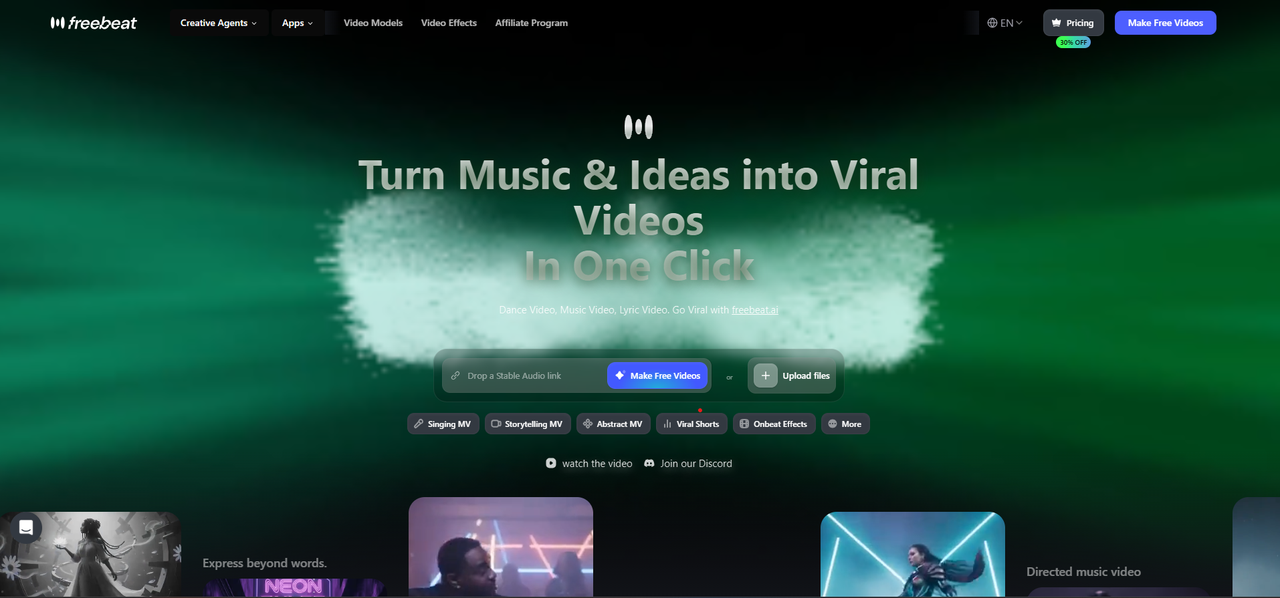
Freebeat's Canvas Loop mode generates a seamless, beat-synced 9:16 loop from any audio file or Suno share link.
Freebeat is the strongest option for creating a Spotify Canvas that actually reflects the music rather than just accompanying it. Its Canvas Loop mode is designed specifically for the format — it generates a short, seamlessly looping video from the audio analysis of the track, and exports in the 9:16 vertical format Canvas requires. When Freebeat generates a Canvas loop for an ambient track, the motion is slow, fluid, and atmospheric. When it generates one for an electronic track, the motion is more intense and reactive.
Key Strengths
- Dedicated Canvas Loop mode built for the Spotify format
- AI analyzes BPM and energy before generating the loop
- Automatic 9:16 vertical output
- Native Suno link support — no file download required
- Multiple visual styles available through prompt direction
Limitations
- Free tier includes a watermark — Canvas must be watermark-free for Spotify upload
- Generation time varies with track length
Best For
Artists who want a Canvas that communicates the mood and energy of the track, rather than a generic waveform or background animation. The strongest option for music-first, beat-aware Canvas content.
Specterr — Best for Clean Waveform and Spectrum Canvas Loops
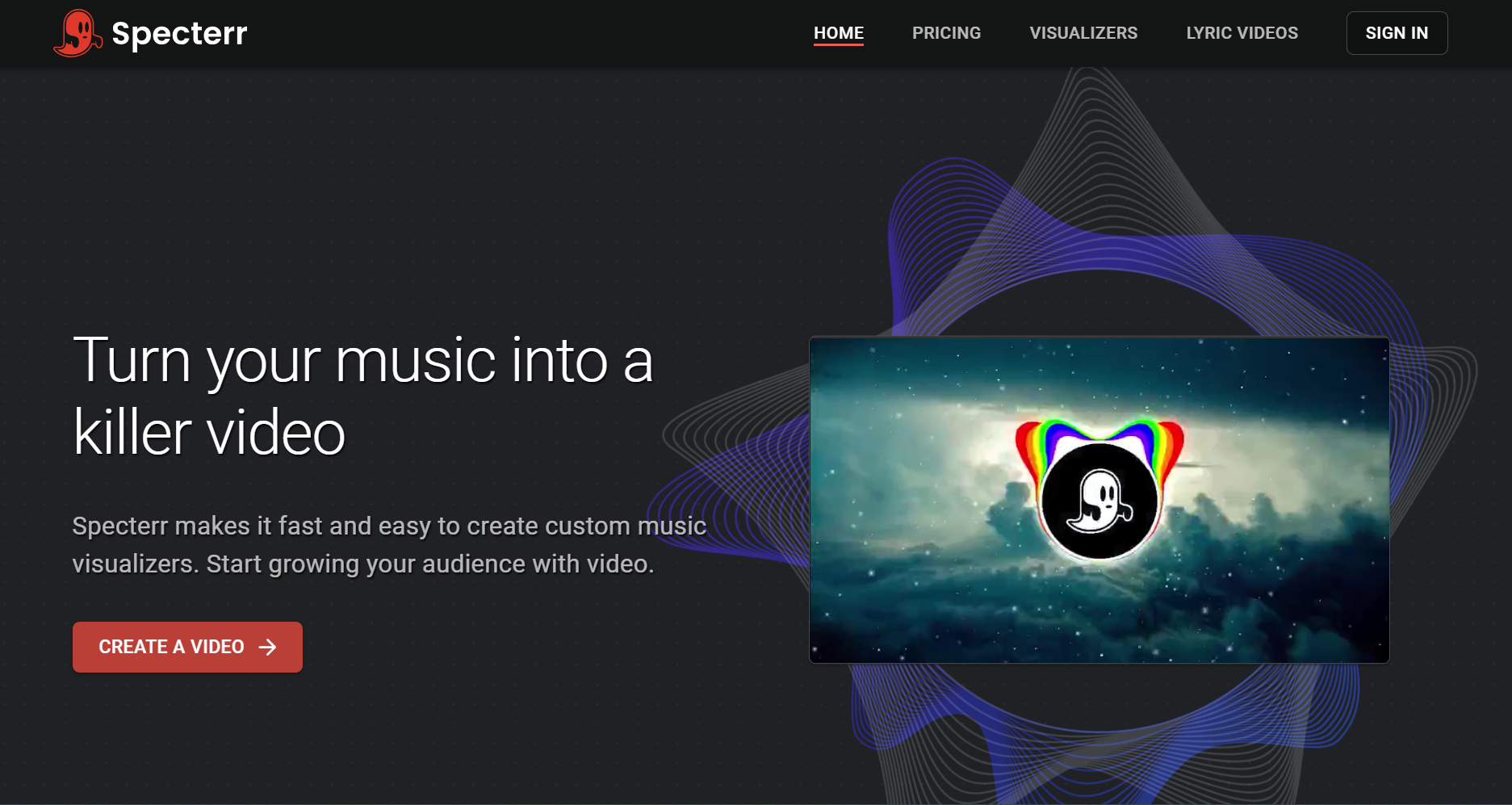
Specterr's template-based waveform and spectrum visualizers are a reliable option for clean, branded Canvas loops.
Specterr is a traditional music visualizer tool that produces clean, template-based waveform and spectrum animations. For Spotify Canvas, it is a reliable option for artists who want a polished, professional-looking audio-reactive animation — a spectrum bar that pulses with the track, or a radial waveform that reacts to frequency content. Its output is consistent and predictable, which matters for Canvas where the loop needs to be seamless and reliable.
Key Strengths
- Clean, professional waveform and spectrum animation templates
- Consistent output — no AI generation variability
- Customizable color palette and background
- Fast to generate
Limitations
- Requires MP3 download from Suno before upload — no native link support
- Does not analyze song structure; responds to amplitude only
- Manual loop trimming required to achieve a seamless result
Best For
Artists who want a reliable, clean waveform or spectrum animation for Canvas and prefer predictable output over AI-generated variety.
Kaiber — Best for Stylized, Artistic Canvas Loops
Kaiber produces stylized, dreamlike short loops — a strong option for artists with a distinctive visual identity.
Kaiber produces stylized, often dreamlike AI-generated video content, and its short loop format makes it a viable option for Spotify Canvas on tracks where a distinctive artistic aesthetic is the priority. If your brand relies on a specific visual world — surrealist, retro, cinematic, highly stylized — Kaiber gives you more creative control over the aesthetic direction than tools optimized for speed or consistency.
Key Strengths
- High aesthetic ceiling — output can feel visually distinctive and artistic
- Good for artists with a strong existing visual identity
- Energy-based audio reactivity influences the mood and intensity of the loop
- Works well for experimental, cinematic, and art-forward genres
Limitations
- Less precise music analysis than Freebeat — energy-based rather than BPM-aware
- More prompt iteration required to achieve the right result
- Loop seamlessness may require manual trimming
- Not designed specifically for the Spotify Canvas format
Best For
Artists who want a Canvas that feels like a visual art piece — experimental, cinematic, or highly stylized genres where distinctiveness matters more than speed.
VEED — Best for Quick, Simple Animated Backgrounds
VEED is a general-purpose video editor that can produce simple animated Canvas content quickly, without music-specific features.
VEED is a general-purpose video editor that can produce simple animated Canvas content — typically an audio waveform or a looping background animation placed in a 9:16 frame. It is the fastest option for artists who want something that meets Spotify's technical requirements without investing time in AI-generated content or stylized output. The result is functional rather than expressive.
Key Strengths
- Fast to produce — minimal setup required
- Broad file format support
- Good for quick uploads when Canvas content is needed and time is limited
- Free tier available (watermark must be removed before Spotify upload)
Limitations
- No music-aware analysis or beat sync
- No dedicated Canvas mode — requires manual 9:16 format setup and loop trimming
- Output communicates "audio file" rather than "visual artistic identity"
Best For
Artists who need a functional Canvas quickly and do not have a visual creative direction in mind — a placeholder solution rather than a brand statement.
Best Practices for Spotify Canvas Visualizers
- Keep the duration between 3 and 8 seconds. Shorter loops (3-5 seconds) work well for abstract or minimal visuals. Longer loops (6-8 seconds) work better for visuals with more motion variety or a subtle narrative arc.
- Test the loop point before uploading. Play the video in a loop on your phone and check that the transition from end to beginning is invisible before uploading to Spotify for Artists.
- Match the visual energy to the song. Canvas plays while the listener hears the track. A mismatched visual — calm and slow over a high-energy release, or busy and intense over an ambient track — creates a disconnecting experience.
- No watermarks, text, or logos. Spotify rejects Canvas content with visible watermarks or text overlays. Export a clean, watermark-free video file before uploading.
- Use 9:16 vertical from the start. Do not create a 16:9 landscape video and crop it to 9:16. Generate or design for portrait orientation from the beginning.
- One strong visual idea. The best Canvas visuals are not complicated. One color gradient, one motion pattern, one visual element done cleanly outperforms a complex multi-element composition in a 3-8 second loop.
Frequently Asked Questions
What is Spotify Canvas?
Spotify Canvas is a 3-8 second looping video that displays behind a track while it plays in the Spotify mobile app. It replaces static album art and plays on a loop for as long as the listener stays on the track's now-playing screen. Canvas is available to artists through Spotify for Artists.
What format does Spotify Canvas need to be in?
Spotify Canvas accepts MP4 video files in 9:16 vertical format, at a minimum resolution of 720 × 1280 px and a maximum file size of 200MB. The video must be 3-8 seconds long and should loop seamlessly.
Can I use a music visualizer for Spotify Canvas?
Yes. AI music visualizers like Freebeat's Canvas Loop mode are specifically designed to generate short, seamlessly looping visuals in the 9:16 format that Spotify Canvas requires. Traditional visualizer tools like Specterr can also be used, though they require manual trimming to achieve a seamless loop.
Does Spotify Canvas affect streaming numbers?
Spotify's research indicates that tracks with Canvas content see higher share rates and longer listening times than tracks without it. Canvas does not directly affect stream counts but can influence listener behavior in ways that support organic growth.
Is it worth creating a Canvas for every track?
Yes, for any track you are actively promoting. Canvas is a no-cost promotional feature available through Spotify for Artists and it plays on every mobile stream. For tracks already in playlists or receiving editorial attention, a well-made Canvas can increase shares and listener retention.
More Resources
Explore more Freebeat tools and guides for music creators:
Ready to create a Canvas for your track? Upload an MP3 or paste a Suno link into Freebeat and generate a seamless 9:16 Canvas loop in minutes.


