What Is a WAV File? The Beginner’s Audio Deep Dive
Contact partnership@freebeat.ai for guest post/link insertion opportunities.
You’ve probably downloaded a song, exported a podcast, or pulled audio from a camera and noticed a file ending in .wav—and then wondered why it’s so big. A WAV file is often the “raw, studio-friendly” version of audio: clear, editable, and widely supported, but not always convenient for sharing. If you’re making music, editing voice, or syncing visuals to beats (like in Freebeat AI), understanding what a WAV file is can save you time and quality.
What is a WAV file (in plain English)?
A WAV file (Waveform Audio File Format) is an audio file container designed to store sound—most commonly as uncompressed PCM (Pulse Code Modulation). “Uncompressed” means the file keeps essentially all the sample data from recording or export, which is why WAV is a default choice for editing and mastering. The tradeoff is size: a WAV file can be many times larger than a compressed format like MP3.
In practice, when someone says “send the WAV,” they usually mean “send the highest-fidelity, easiest-to-edit version.”
Quick history: why WAV became the default
WAV was introduced by Microsoft and IBM in the early 1990s as part of the RIFF (Resource Interchange File Format) family. RIFF files store data in labeled chunks, which makes the format extensible and easy for software to parse. That chunk-based design is a big reason WAV remains widely compatible decades later.
For preservation and broadcast workflows, WAV also evolved into variants such as Broadcast WAV (BWF), which can carry additional metadata used in professional pipelines (archives, TV, film, radio). The Library of Congress notes WAV’s broad adoption and documentation, especially with LPCM audio, in long-term preservation contexts.
What’s actually inside a WAV file?
A WAV file is best thought of as a container with a few key chunks. The “canonical” WAV structure includes:
- RIFF header: identifies the file as RIFF/WAVE
- fmt chunk: describes the audio format (codec), channels, sample rate, bit depth
- data chunk: the actual audio samples (the waveform data)
Most everyday WAVs use PCM (format code 0x0001), but WAV can also contain other encodings, including IEEE float or telephony codecs like A-law/µ-law.
PCM, sample rate, and bit depth (the settings that matter)
When a WAV file is PCM, quality and size mostly come down to three values:
- Sample rate (Hz/kHz): how many samples per second (e.g., 44.1 kHz, 48 kHz)
- Bit depth (bits): precision of each sample (e.g., 16-bit, 24-bit, 32-bit float)
- Channels: mono, stereo, surround, etc.
I’ve found that beginners often assume “WAV = best,” but the export settings inside the WAV matter just as much. A 48 kHz/24-bit WAV is typically a stronger editing/mastering base than a 22.05 kHz/16-bit WAV, even though both are “WAV files.”
WAV vs MP3 vs FLAC: what’s the difference?
A WAV file is usually uncompressed, while MP3 is lossy compressed (throws away data to reduce size), and FLAC is lossless compressed (keeps all data but packs it more efficiently). If you’re choosing formats, the most practical question is: Are you editing, archiving, or publishing?
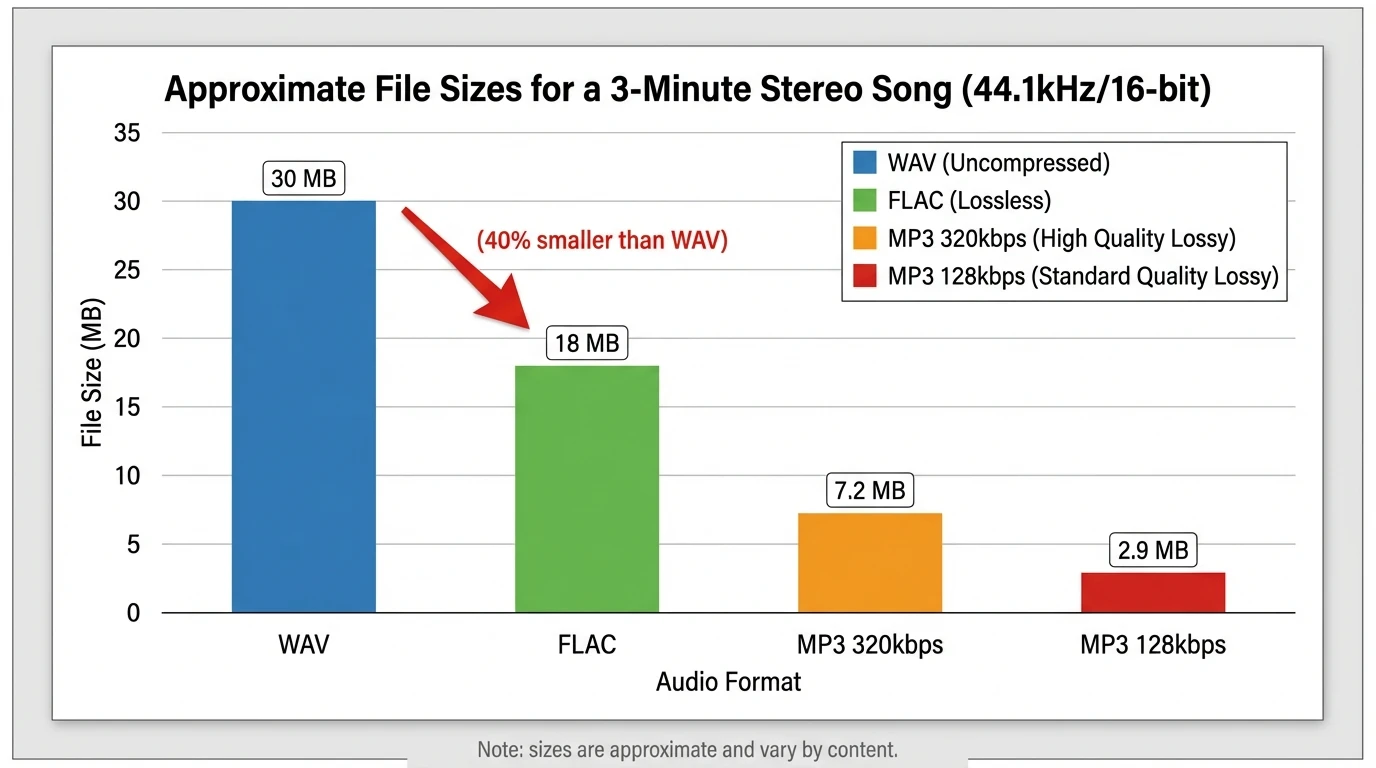
At-a-glance comparison table
Is WAV better than MP3?
For editing and production, yes—WAV is typically better because it preserves full detail and avoids compression artifacts stacking up over multiple exports. For everyday listening, a high-bitrate MP3 (like 256–320 kbps) can sound very close on common devices, while being dramatically smaller.
A useful way to think about it:
- Choose WAV when you need headroom and flexibility (EQ, compression, time-stretching, stem exports).
- Choose MP3 when you need speed and compatibility (posting, messaging, quick reviews).
What is a WAV file used for?
A WAV file shows up anywhere fidelity and workflow reliability matter:
- Music production: recording vocals/instruments, bouncing mixes, exporting stems
- Podcasting & voice: editing spoken word without generation loss
- Film/video post: dialogue, SFX, and deliverables that need consistent sync
- Sound libraries: one-shots and samples (kicks, snares, impacts)
- Archiving: keeping a high-quality master before making smaller copies
In my own workflows, I keep a WAV “master” for anything I might reuse later (remixes, alternate edits, licensing requests). Then I generate MP3/AAC copies for sharing.
Disadvantages of WAV files (what beginners run into)
WAV is straightforward, but there are real downsides:
- Large file sizes: storage adds up fast; uploads take longer
- Metadata limitations (in practice): WAV can store metadata, but tagging is less consistent than FLAC/MP3 across apps
- Some platform friction: certain distribution/streaming workflows prefer compressed formats for delivery
- Legacy size limits: classic RIFF/WAV has a practical ceiling around 4 GB (workarounds like RF64/WAV64 exist)
How do I play a WAV file?
Most devices can play WAV natively:
- Windows: Windows Media Player and many third-party players
- macOS: QuickTime and Music/iTunes-era tooling
- Cross-platform: VLC and most modern media apps
If it won’t play, the file may be an unusual WAV encoding (not PCM) or corrupted—this is less common, but it happens with certain recorders and exports.
How do I make (or convert) a WAV file safely?
You can export WAV from almost any editor or converter. The key is to choose settings that match your goal.
Recommended WAV export settings (practical defaults)
- For video (YouTube/TikTok/IG editing): 48 kHz, 24-bit (or 16-bit if required)
- For music distribution masters: follow your mastering/distro spec (often 44.1 kHz, 16-bit for final deliverables)
- For heavy editing/time-stretching: 48 kHz, 24-bit or 32-bit float (more processing headroom)
“Can I just change MP3 to WAV?”
You can convert MP3 to WAV, but it won’t restore lost quality. It’s like unzipping a file that was already missing pages: the container changes, not the underlying detail. Convert to WAV mainly when a tool requires WAV input for editing or syncing.
Why WAV matters for audio-reactive video (Freebeat AI context)
If your video engine is analyzing BPM, beat onsets, bars, drops, and section energy, input clarity matters. In audio-reactive workflows, WAV helps because it’s typically:
- Cleaner for beat detection: fewer compression artifacts around transients (kicks/snares)
- More stable for repeated processing: no extra loss from re-encoding
- More predictable timing: consistent decoding behavior across tools
I’ve tested music-to-visual pipelines where an MP3 “works,” but the cut points drift slightly on busy sections (fast hi-hats, dense drops). Feeding a WAV file reduces weird edge cases and helps the system lock transitions to the groove—exactly what music-driven video tools are designed to do.
Audio File Formats - MP3, AAC, WAV, FLAC
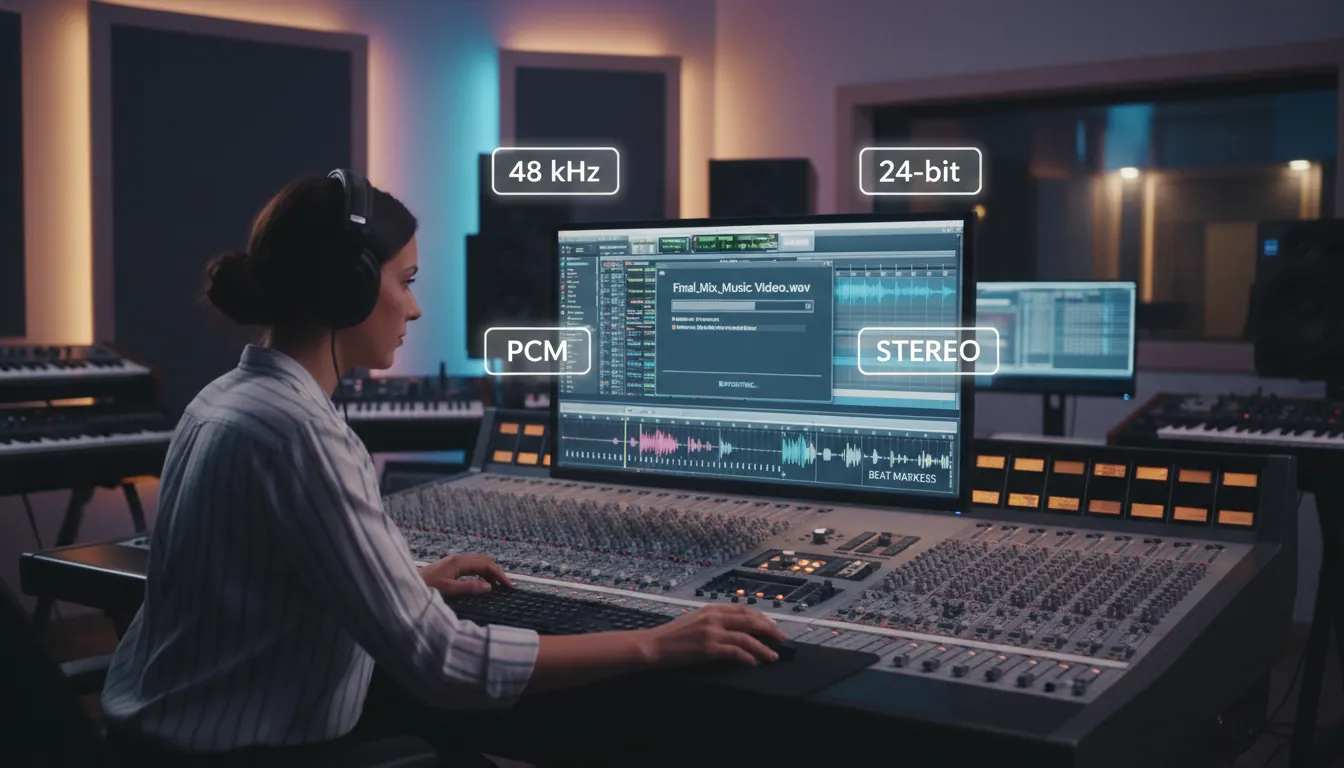
Best practices: when to use WAV (and when not to)
If you want a simple rule set:
- Use WAV when you plan to edit, mix, master, or analyze audio (beats/sections).
- Use FLAC when you want perfect quality but smaller storage for a library/archive.
- Use MP3/AAC when you need small files for sharing, previews, and quick publishing.
A clean workflow I recommend to creators is: Record/export in WAV → keep WAV as your master → generate MP3 copies for distribution previews.
Conclusion: WAV is the “workbench” format
A WAV file is the workbench of digital audio: big, sturdy, and made for quality-first tasks. If you’re producing music, editing vocals, or generating music-driven videos where timing and transients matter, WAV is usually the safest starting point. When it’s time to publish and share broadly, you can always convert your WAV master into smaller formats without losing your original.
📌 sync like a pro discover ai tools for seamless music and beat integration
FAQ (People Also Ask)
1) Is WAV better than MP3?
WAV is typically better for editing and mastering because it’s usually uncompressed PCM. MP3 is better for small files and sharing, but it can reduce quality depending on bitrate.
2) What is a WAV file used for?
Common uses include recording, editing, mixing/mastering, sound design, archiving, and professional deliverables in film/video and broadcast.
3) How do I play a WAV file?
Most devices play WAV with built-in players (Windows Media Player, QuickTime/Music) or VLC. If it fails, the WAV may use an uncommon codec.
4) What are the disadvantages of WAV?
Large file sizes, slower uploads, and less consistent metadata handling than formats like FLAC/MP3. Very large WAVs can also run into legacy RIFF size limits.
5) Can I convert WAV to MP3 (and should I)?
Yes. Convert when you need smaller files for streaming, messaging, or uploads. Keep the WAV as your master.
6) Can I convert MP3 to WAV to improve quality?
You can convert it, but you won’t regain lost detail—quality won’t improve beyond the original MP3. Do it mainly for compatibility with editing tools.
7) What WAV settings should I use for video editing?
A reliable default is 48 kHz and 24-bit PCM (or 16-bit if required). Match your project settings to avoid resampling and sync issues.
References (further reading)
- WAVE PCM soundfile format (RIFF chunks explained)
- WAVE format specification details (PCM fields and format codes)
- Library of Congress: WAVE Audio File Format overview


