Best Ways to Turn Audio into Video Content for Social Media

Quick answer: The best way to turn audio into video content for social media is to use an AI music video generator like Freebeat, which analyzes your track's BPM and structure to create beat-synced, platform-ready video automatically. Other options include Revid.ai for fast short-form clips, VEED for general-purpose conversion with captions, Kapwing for combining audio with existing footage, and Headliner for podcast-style audiograms. The right tool depends on the platform — TikTok, Instagram, YouTube, and Spotify all reward slightly different visual approaches.
Social media platforms do not accept audio-only posts. A song, a podcast clip, a voice memo, a Suno track — all of it needs to become a video file before it can be uploaded to TikTok, Instagram, YouTube, or shared as a Spotify Canvas. That single requirement creates a workflow gap for creators who have audio but no video production background.
In 2026, closing that gap no longer requires editing software or technical skill. A handful of tools — some built specifically for music, others built for general content — can turn an audio file into a publish-ready video in minutes. This guide covers the best ways to do that, with a closer look at how to use the most complete option, Freebeat, across different social platforms.
Want to skip straight to the music-aware option? Upload an MP3 or paste a Suno link — Freebeat generates a beat-synced video formatted for your platform.
Try Freebeat free →Best Tools to Turn Audio into Video Content for Social Media
Freebeat — Best for Beat-Synced, Music-Aware Video
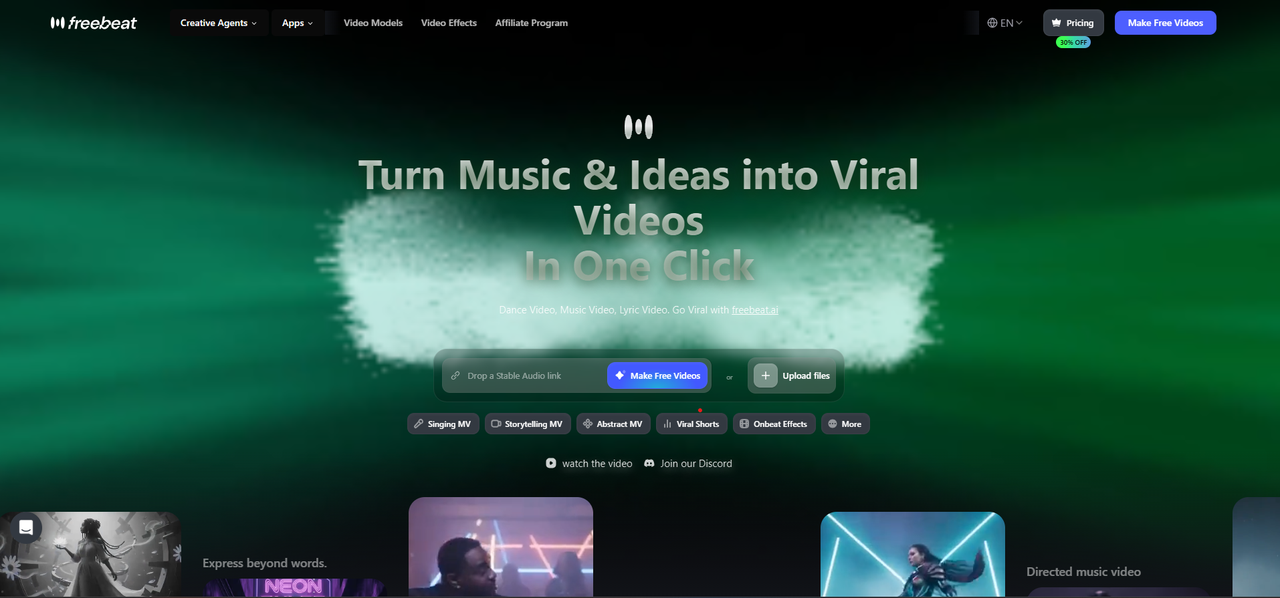
Freebeat is built specifically for turning music into video that reflects the actual structure of the song, not just a static image with audio behind it. It analyzes BPM, beat onsets, energy levels, and song structure automatically, then generates a video where cuts, scene changes, and visual energy are tied to the music itself. It accepts MP3, WAV, and M4A uploads, as well as Suno share links natively.
For social media specifically, Freebeat supports multiple output modes — Singing MV with lip sync, Storytelling MV for cinematic scenes, Lyric Video for caption-led content, and Canvas Loop for short platform visuals — and exports in the aspect ratios each platform requires.
Revid.ai — Best for Fast Short-Form Social Clips
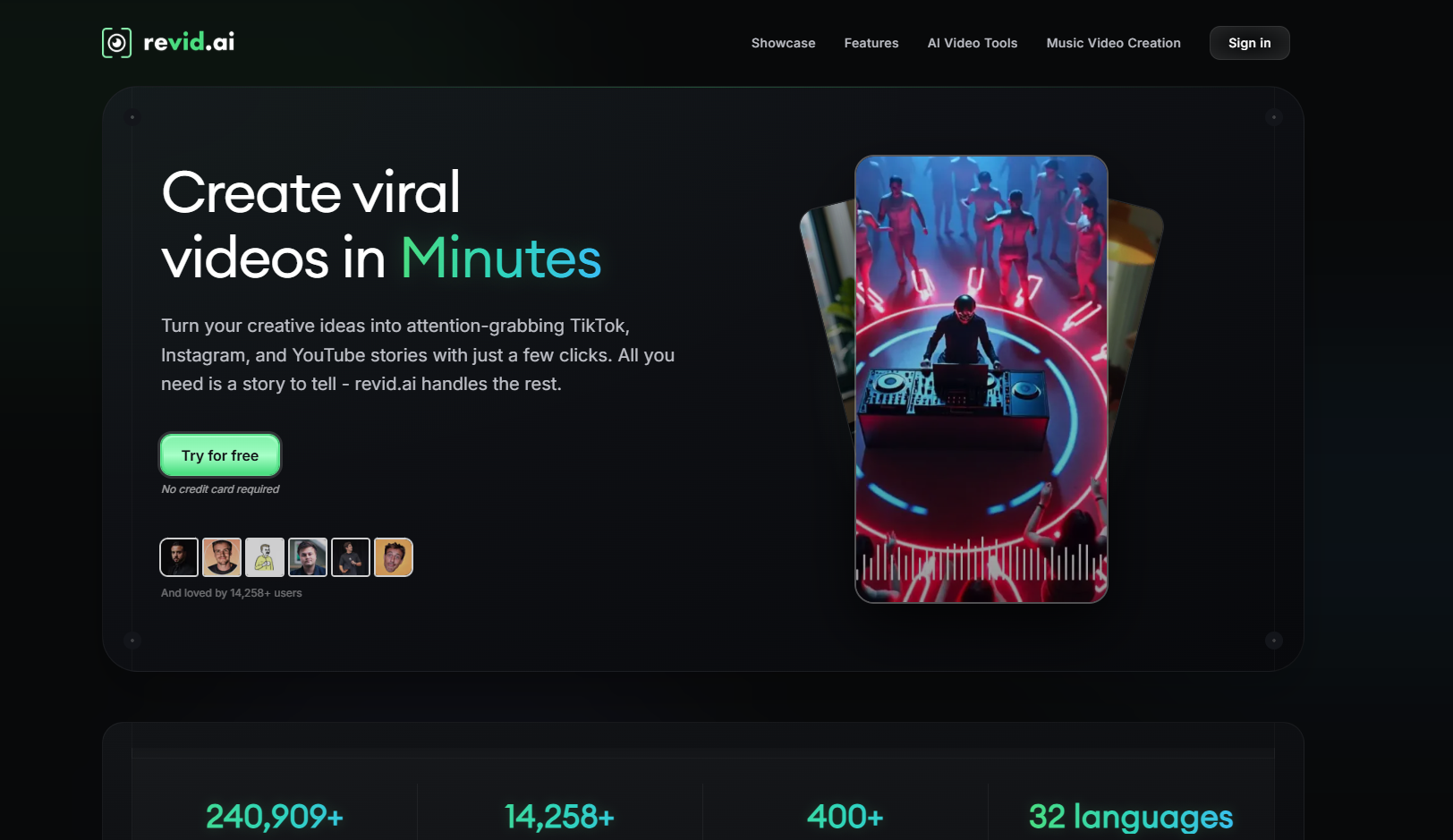
Revid.ai is built around speed and short-form formatting. It is optimized for getting a clip from audio to a shareable TikTok, Reels, or Shorts post in the fewest steps, with strong lyric caption and text overlay tools. It is less suited to full song-length video or beat-aware visual generation, but for a quick clip from a song's hook, it performs efficiently.
VEED — Best for General-Purpose Audio-to-Video Conversion
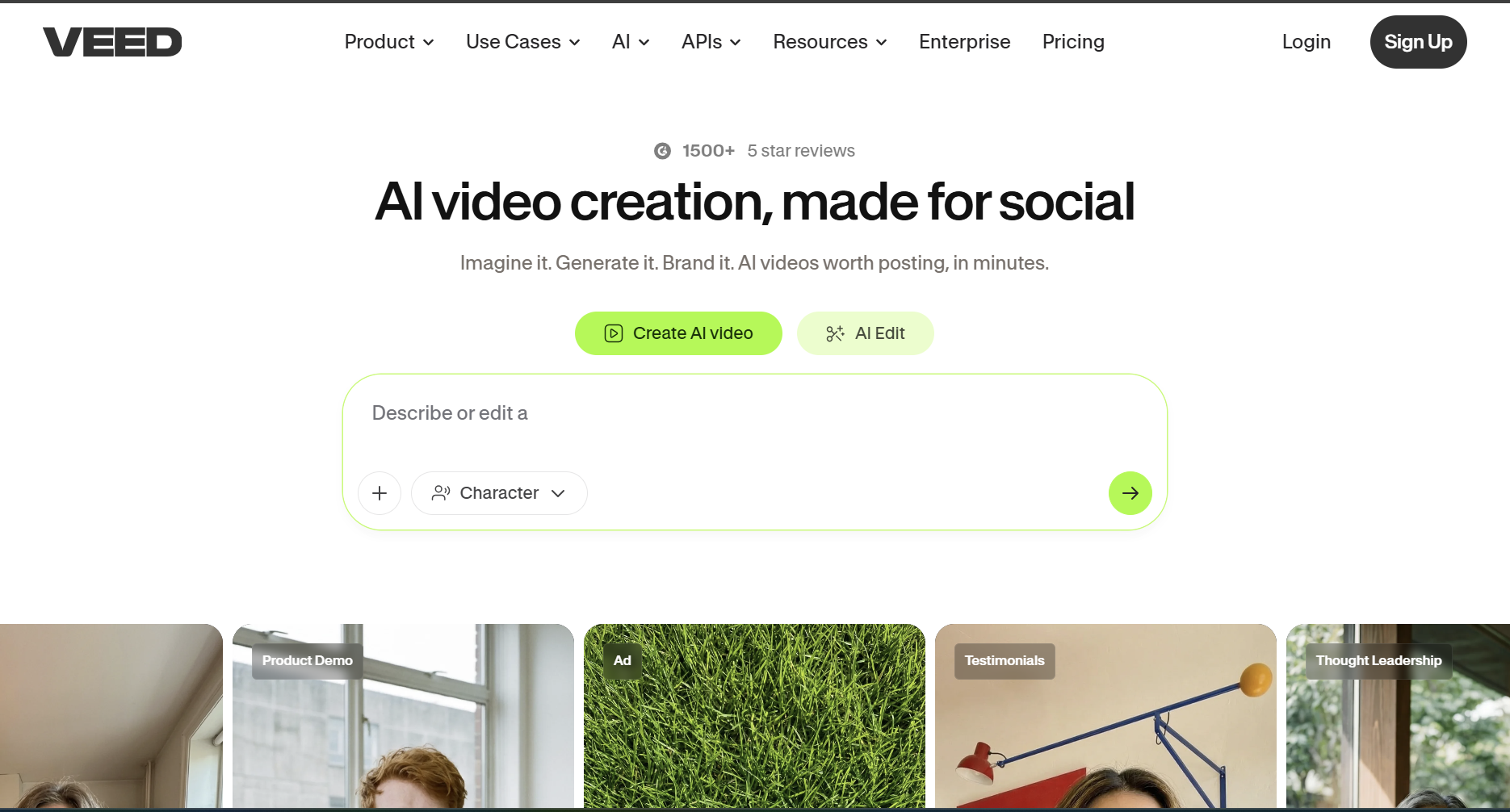
VEED is a large general-purpose online video editor with strong subtitle and caption generation. It covers the basic audio-to-video task — wrapping a file in a background image or waveform — efficiently and at volume, with broad format support. It does not analyze BPM or song structure, so the output does not respond to the music itself.
Kapwing — Best for Combining Audio with Existing Footage
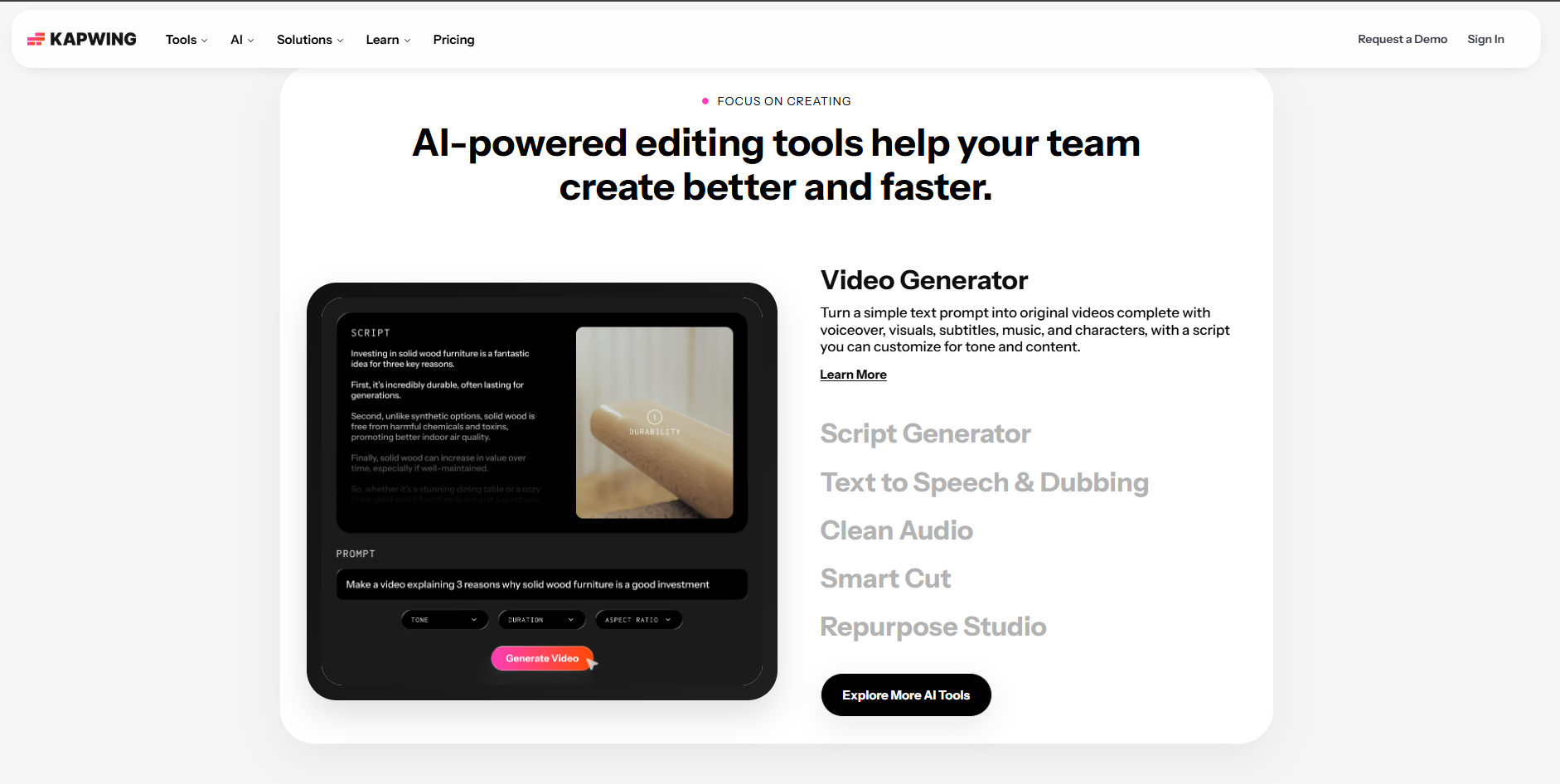
Kapwing functions as a timeline-based video editor where you can layer audio with visual assets you already have — images, footage, graphics, or text. It is more flexible than a basic converter for creators who already have visual material and want to assemble it around an audio track, though it does not generate visuals from the audio automatically.
Headliner — Best for Podcast and Social Audiograms
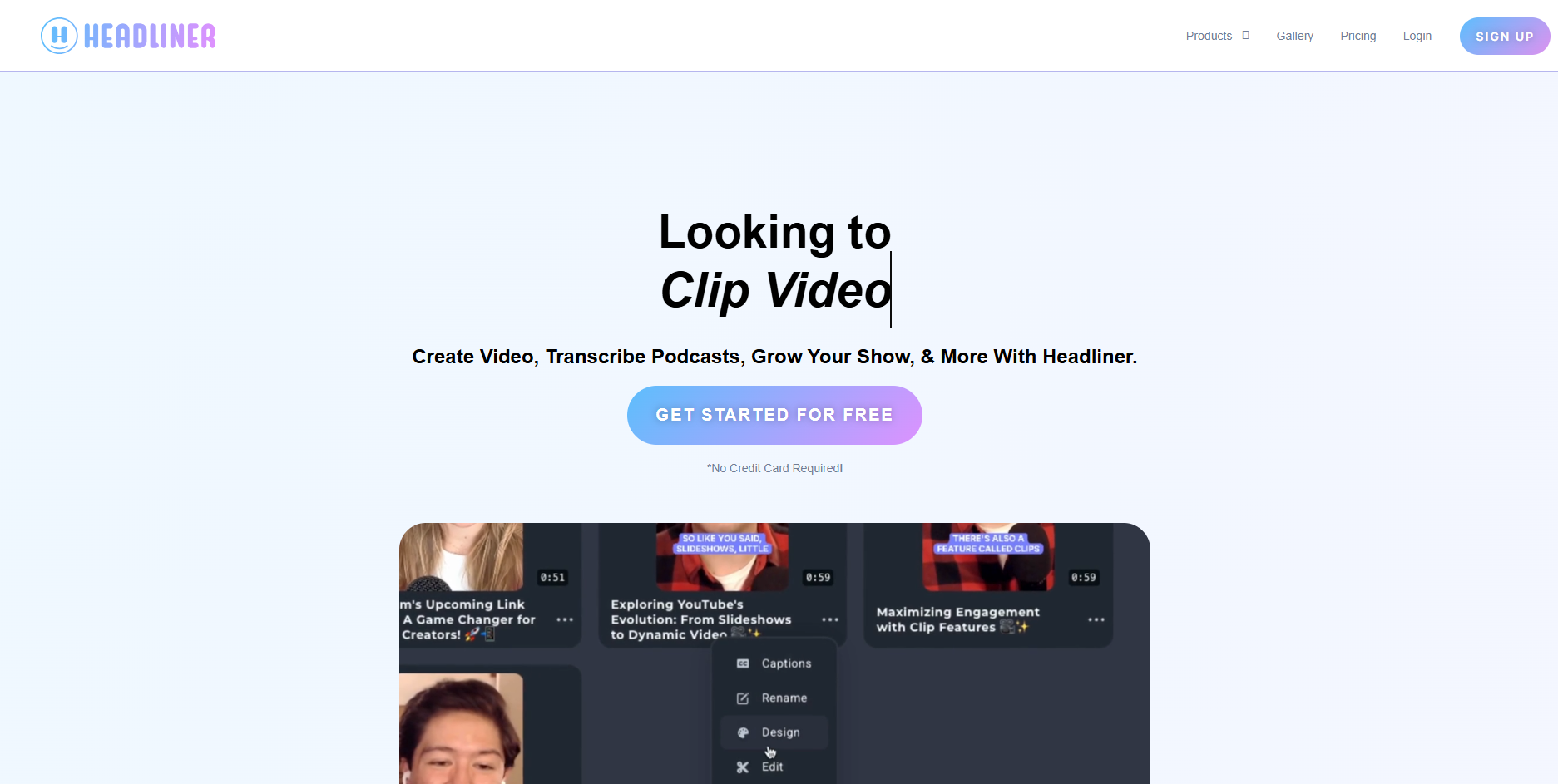
Headliner is designed for converting audio into short, shareable social clips — primarily audiograms with waveform animation, auto-generated transcripts, and captions. Its output is optimized for podcast promotion and spoken-word content rather than music, but for that specific use case, it is fast and low-friction.
Quick Comparison: Best Tools for Turning Audio into Social Video
| Tool | Music-Aware (BPM/Structure) | Speed | Best Platform Fit | Best For |
|---|---|---|---|---|
| Freebeat | ✅ Yes | Moderate (a few minutes) | TikTok, Reels, YouTube, Spotify Canvas | Beat-synced music videos, Suno tracks |
| Revid.ai | ❌ No | Fast | TikTok, Reels, Shorts | Quick clips from a song hook |
| VEED | ❌ No | Fast (unlimited free exports) | YouTube, general upload | Podcast clips, voiceover content |
| Kapwing | ❌ No | Moderate | Social posts with existing footage | Branded clips with existing assets |
| Headliner | ❌ No | Fast | Instagram, Twitter/X, podcast promo | Audiograms, podcast clips |
How to Use Freebeat to Turn Audio into Video Content for Social Media
The core Freebeat workflow stays the same across platforms — upload, analyze, choose a mode, prompt, review, export — but a few decisions change depending on where the video is going.
1Upload your audio or paste a link
Go to freebeat.ai. Upload an MP3, WAV, or M4A file, or paste a Suno share link directly. No download step is required for Suno tracks.
2Let the AI analyze the track
Freebeat automatically reads BPM, beat onsets, energy levels, and song structure. This step is the same regardless of platform — it happens before you make any platform-specific decisions.
3Choose your aspect ratio and mode based on the platform
This is where the workflow diverges by destination:
4Write a platform-appropriate visual prompt
For short-form platforms like TikTok and Reels, write a prompt that emphasizes high-energy, visually immediate imagery — viewers decide whether to keep watching within the first one to two seconds. For YouTube full releases, a more cinematic, scene-driven prompt with slower pacing can work, since YouTube viewers tolerate a longer setup.
5Review the storyboard
Freebeat shows a shot-by-shot storyboard before rendering, mapped to the song's structure. For short-form content specifically, check that the opening frame has visual motion — a slow or static first shot loses viewers on feed-based platforms before the song has a chance to play.
6Export and publish
Export in the format set in Step 3. If you are publishing the same song across multiple platforms, you can generate separate exports — a 9:16 TikTok clip, a 16:9 YouTube video, and a Canvas Loop — all from the same source audio, without needing to re-shoot or re-edit anything.

One source track, multiple platform-ready exports — 9:16 for TikTok, 16:9 for YouTube, and a loop for Spotify Canvas.
Which Platform Needs Which Approach?
| Platform | Best Aspect Ratio | Best Freebeat Mode | Key Consideration |
|---|---|---|---|
| TikTok | 9:16 | Singing MV or Lyric Video | Hook in the first 1–2 seconds; start at the chorus, not the intro |
| Instagram Reels | 9:16 | Singing MV or Storytelling MV | Aesthetic consistency matters more visibly than on TikTok |
| YouTube (main upload) | 16:9 | Storytelling MV or Singing MV | Full song-length video; cinematic pacing is acceptable |
| YouTube Shorts | 9:16 | Lyric Video or Singing MV | Slightly longer hook window than TikTok (3–5 seconds) |
| Spotify Canvas | 9:16 (looping) | Canvas Loop | Must loop seamlessly; 3–8 second duration |
| Instagram feed / X (Twitter) | 1:1 or 16:9 | Canvas Loop or Lyric Video | Shorter clips perform better in scrolling feeds |
Frequently Asked Questions
What is the best way to turn a song into a video for social media?
Using an AI music video generator like Freebeat is the most efficient approach for music specifically, since it analyzes the track's BPM and structure to generate beat-synced video automatically. For non-music audio like podcasts, a tool like Headliner or VEED is better suited.
Can I use the same audio-to-video output across TikTok, Instagram, and YouTube?
The same source audio can be used, but the export settings should differ — 9:16 for TikTok and Reels, 16:9 for a main YouTube upload, and 9:16 again for YouTube Shorts. Most AI tools, including Freebeat, let you export multiple aspect ratios from the same generated video without starting over.
Do I need different tools for different social platforms?
Not necessarily. Freebeat covers TikTok, Reels, YouTube, and Spotify Canvas from a single workflow by adjusting the aspect ratio and mode. Some creators use a dedicated tool like Headliner specifically for podcast audiograms alongside a music-focused tool for song content.
How long should an audio-to-video clip be for social media?
For TikTok and Reels, 15–45 seconds tends to perform best for discovery. For YouTube Shorts, up to 60 seconds works well, since the platform rewards retention across the full clip. For a full YouTube release, the video typically matches the full length of the song.
Is it better to use a free tool or a paid one for converting audio to video?
Most tools, including Freebeat, VEED, Kapwing, and Headliner, offer a free tier that covers the core workflow, often with a watermark or export limit. For occasional or test use, the free tier is usually sufficient. For regular publishing without a watermark, upgrading to a paid plan is typically necessary.
Can I turn a Suno song into social media video content?
Yes. Freebeat accepts Suno share links directly — no download required — and generates beat-synced video formatted for whichever social platform you are publishing to.
More Resources
Explore more Freebeat tools and guides for music creators:
Ready to turn your audio into social media video? Upload an MP3 or paste a Suno link into Freebeat and export a beat-synced video for any platform.
Try Freebeat free →

