How to Turn a Suno Song into a Music Video in 2026

Quick answer: To turn a Suno song into a music video, paste your Suno share link into Freebeat, write a short visual prompt, and choose your video mode. Freebeat analyzes your track's BPM and structure, builds a storyboard, and renders a complete beat-synced music video. No editing experience is needed.
Suno has made it faster than ever to create a great-sounding track. The harder step is turning that audio into a publishable music video for YouTube, TikTok, Instagram Reels, Spotify Canvas, or Apple Music. In the past, that meant sourcing footage, hiring a videographer, or spending hours in an editing timeline.
In 2026, the workflow is much faster. Freebeat AI supports native Suno links, so you can paste your Suno share URL directly without downloading the audio file first. From there, Freebeat's AI Music Video Agent analyzes the track, creates a directed storyboard, and generates a beat-synced music video with options for lip sync and lyric captions.
What You Need Before You Start
- A Suno track with a public share link. Open your Suno track page and use the share icon to generate a public URL.
- A Freebeat account. Sign up at freebeat.ai and open the Music Video workflow.
- A short visual prompt. One to three sentences describing the setting, mood, character, and aesthetic is enough.
- A clear output goal. Decide whether you want a singing music video, instrumental visual story, lyric video, or animated cover loop.
Step-by-Step: How to Turn a Suno Song into a Music Video with Freebeat

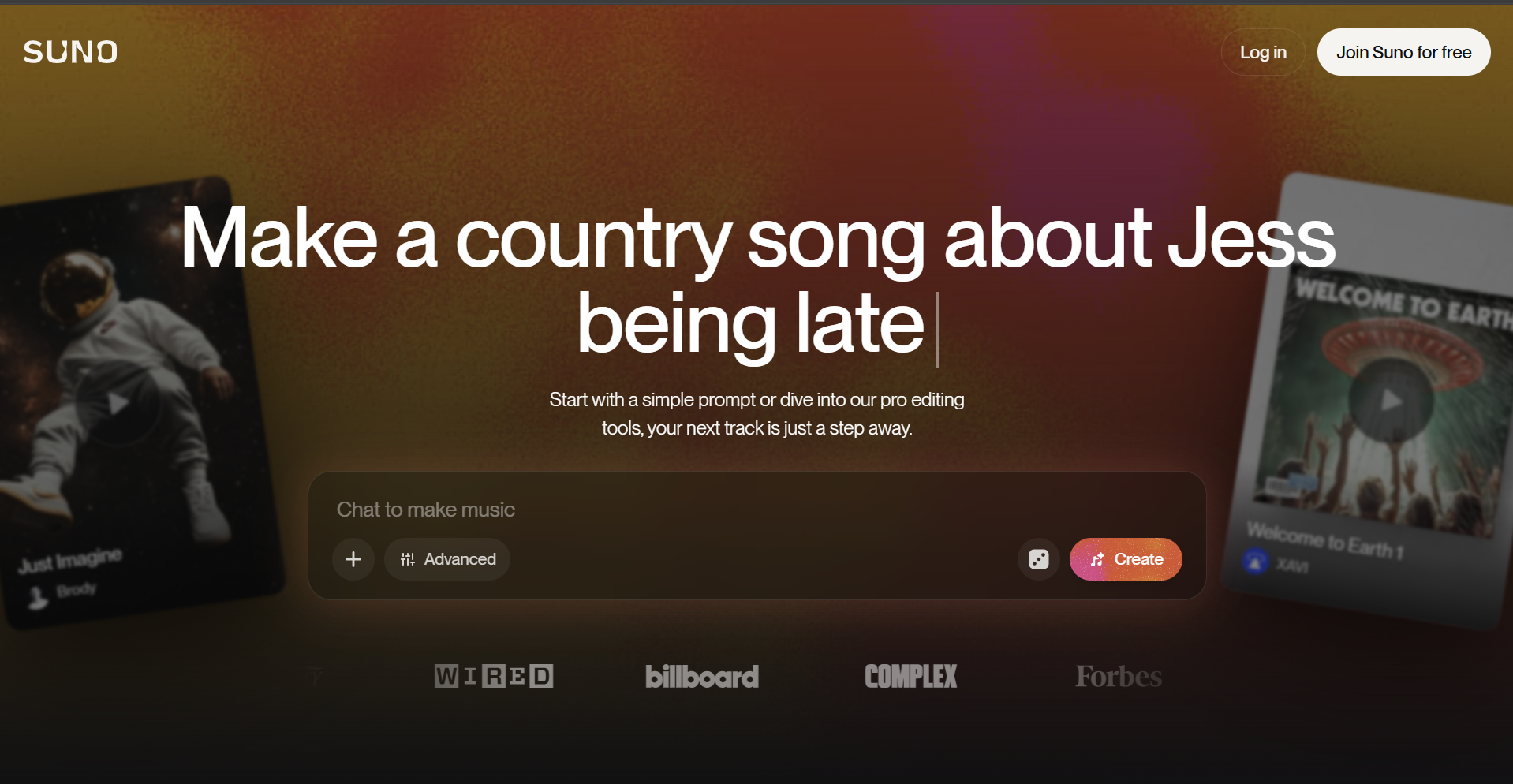
Step 1: Generate Your Song in Suno AI
Go to suno.com and create your track. Use a short prompt to describe the song, or switch into advanced options if you want more control over lyrics and style tags. Once you are happy with the result, open the track page, click the share icon, and copy the public Suno URL.
Tip: Listen through the track before moving into video generation. Note where the energy peaks, where quieter moments happen, and whether the vocals are clean enough for lip sync.
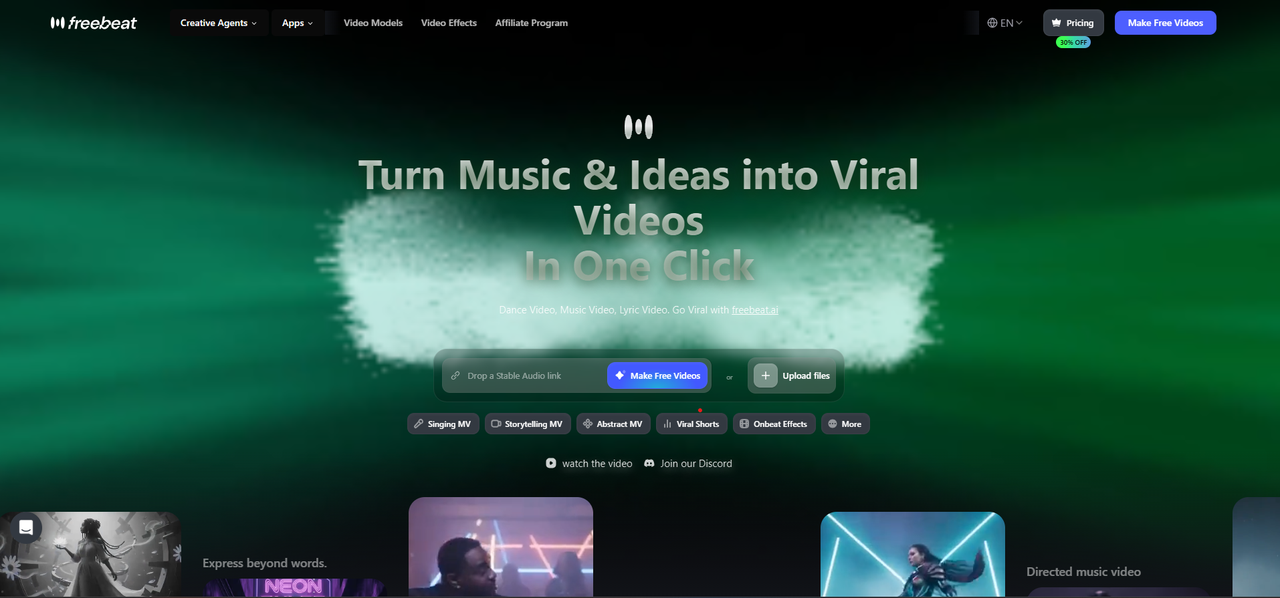
Step 2: Open Freebeat and Select Music Video Mode
Go to Freebeat and log in. From the dashboard, select the Music Video workflow. This mode is designed for full-song music video creation rather than short, disconnected AI clips.
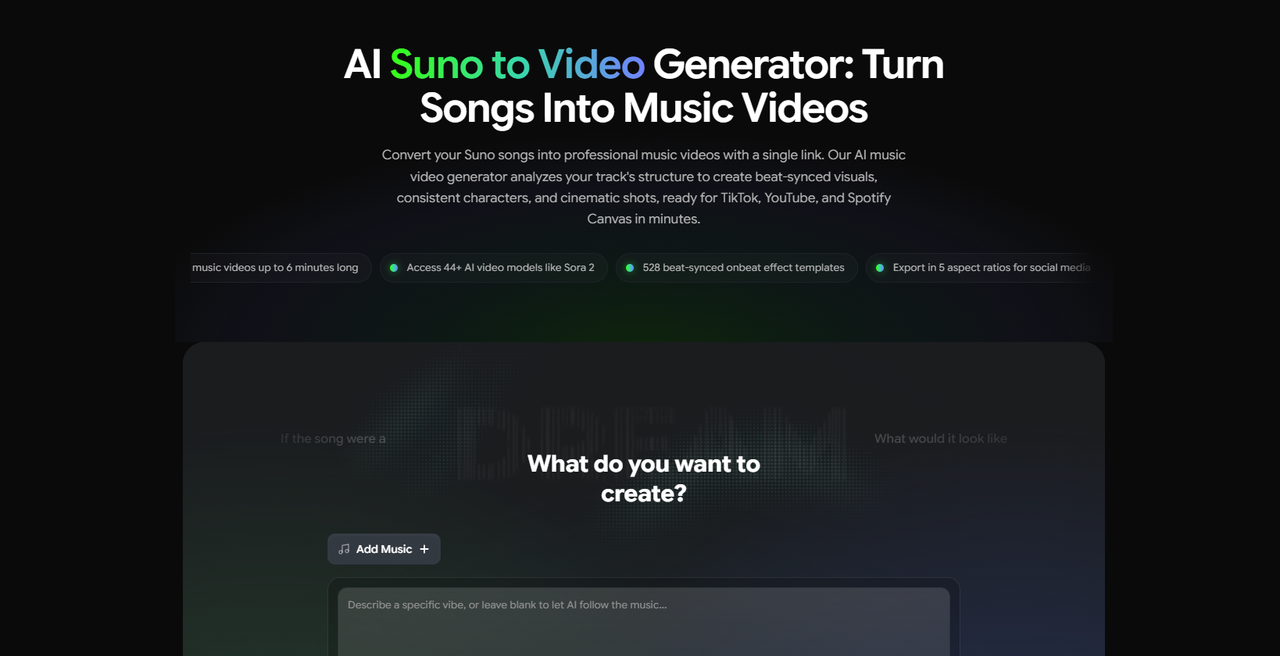
Step 3: Paste Your Suno Link
Paste your Suno share URL into the music input field. Freebeat imports the track automatically, then begins audio analysis: BPM detection, song section mapping, rhythm analysis, and energy contour mapping. You do not need to download the song or convert it into another format.
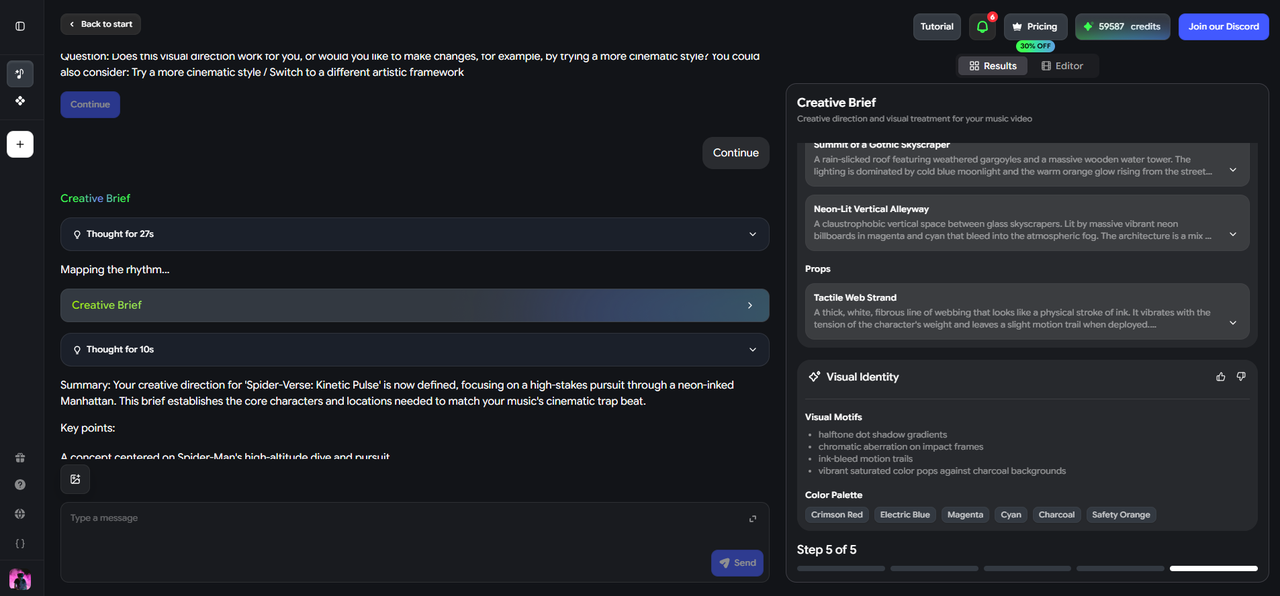
Step 4: Write Your Visual Prompt
Describe the world of the video. Mention the location, mood, character, camera feel, lighting, and color palette. Specific prompts usually produce better storyboards than generic prompts.
Example for an indie-pop Suno track: “Overcast coastal town in autumn, female singer in a beige trench coat, slow cinematic close-ups, muted earth tones, soft handheld camera movement.”
Example for an electronic Suno track: “Neon-lit Tokyo street at night, male DJ performing, wide establishing shots mixed with fast-cut close-ups, vivid blues and purples, high energy.”
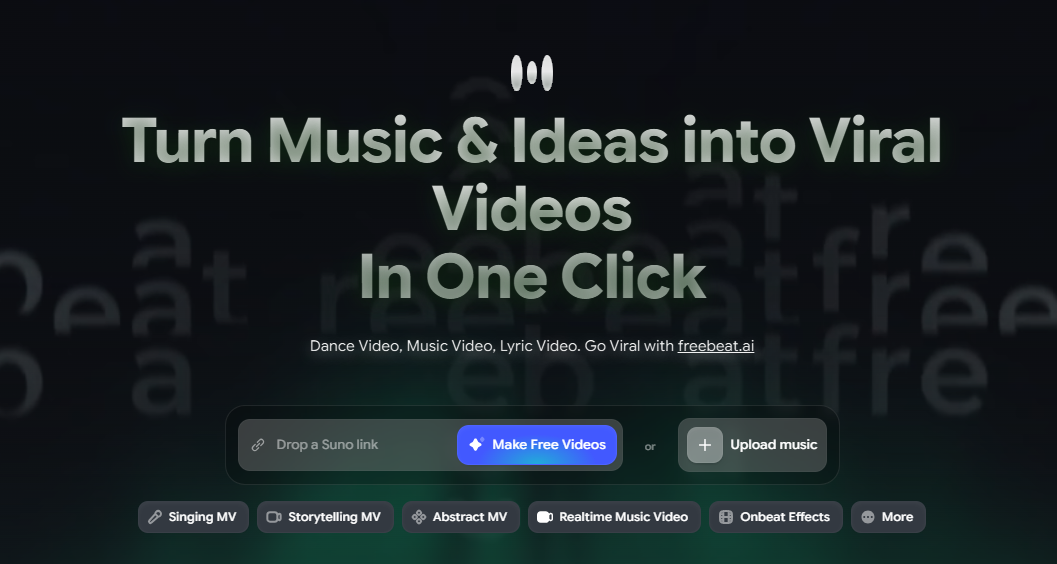
Step 5: Choose Your Video Mode
Pick the output that matches your track. For vocal tracks, choose Singing MV mode to activate lip sync. For instrumental tracks, use Music Video or Storytelling MV. For lyric-forward songs, enable lyric captions or use a lyric video workflow.
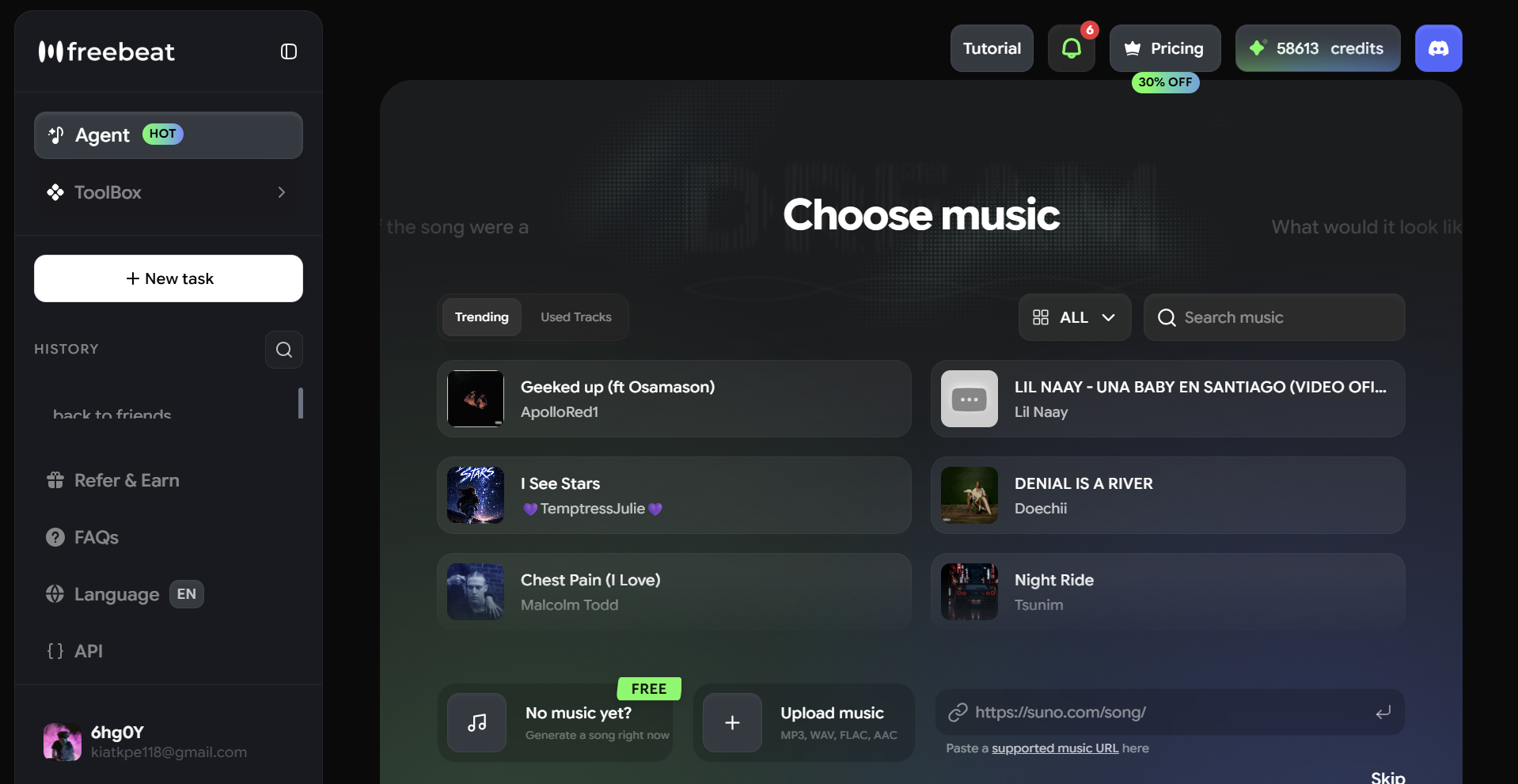
Step 6: Enable Singing MV Mode and Lyric Captions
If your Suno song has clear vocals, turn on Singing MV mode before generating. You can also enable lyric captions so Freebeat adds beat-synced animated lyrics to the finished video.
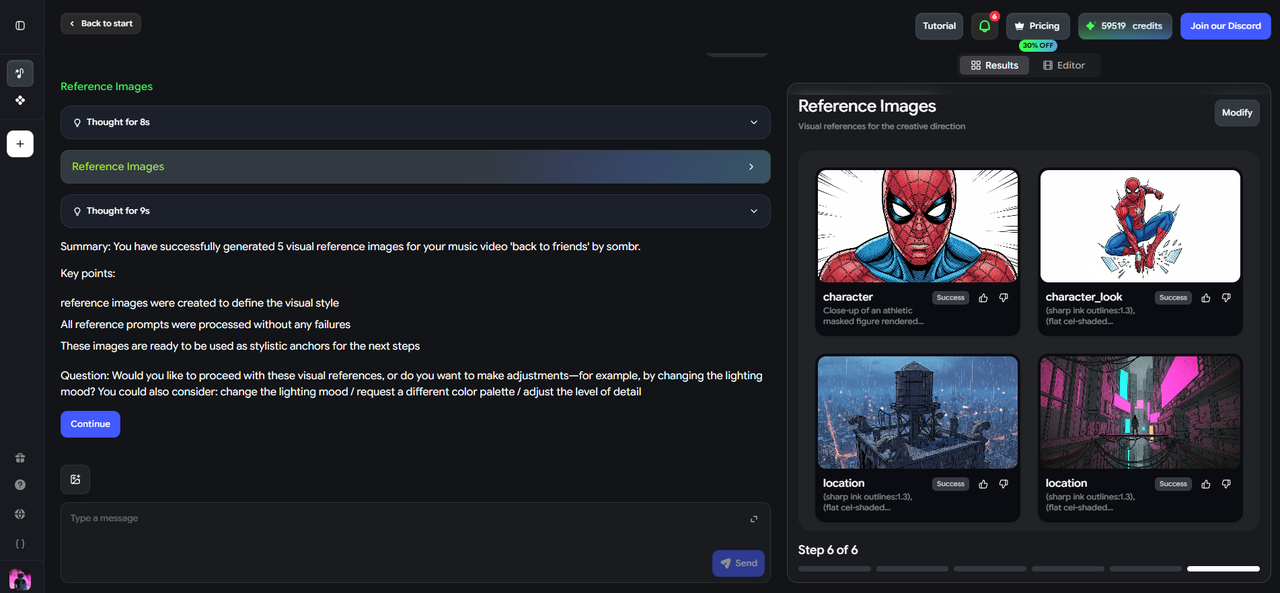
Step 7: Review the AI-Generated Storyboard
Before the final render, Freebeat shows a shot-by-shot storyboard based on your Suno track and visual prompt. Review the planned scenes for the intro, verse, chorus, bridge, and outro. If a scene feels off, revise the storyboard before rendering.

Step 8: Generate and Export Your Music Video
Once the storyboard looks right, generate the video. Freebeat renders the full music video based on the track, prompt, mode, and storyboard. Export the final version for YouTube, TikTok, Instagram, Spotify Canvas, Apple Music, or your release campaign.
Prompt Formula for Better Suno Music Videos
Use this simple structure when writing your prompt:
Location + character + mood + camera style + color palette + energy level
For example: “Dimly lit basement recording studio at 2am, young male singer in a black leather jacket, warm amber lamp light, slow dolly shots, intimate and emotional.”
Freebeat Modes Explained for Suno Creators
| Mode | Best For | Use When |
|---|---|---|
| Singing MV | Vocal Suno songs | You want a character to appear to sing the track with lip sync. |
| Storytelling MV | Cinematic or instrumental tracks | You want scenes, settings, and narrative visuals driven by the song structure. |
| Lyric Video | Lyric-forward tracks | You want animated captions to be the main visual element. |
| AI Music Cover Generator | Release assets | You need an animated cover loop for Spotify Canvas, Apple Music, or social thumbnails. |
Common Mistakes to Avoid
- Using a generic prompt. “Make a music video” gives the AI very little direction.
- Ignoring the song's energy. A high-BPM track needs more movement, cuts, and visual intensity than a slow ballad.
- Skipping storyboard review. The storyboard stage is the easiest point to make creative changes.
- Using unclear vocals for lip sync. Heavy vocal effects or buried vocals can make lip sync harder.
Frequently Asked Questions
Do I need to download my Suno song before using Freebeat?
No. Freebeat accepts Suno share links directly. Paste the public Suno URL into the music input field and Freebeat imports the audio automatically. If you prefer local files, Freebeat also supports common audio uploads such as MP3, WAV, and M4A.
Can Freebeat create a full-length music video from a Suno song?
Yes. Freebeat is built for full song-length music video creation. It can generate a complete video across the full duration of your Suno track instead of forcing you to stitch together short clips manually.
How accurate is lip sync for Suno vocal tracks?
Lip sync works best when the lead vocal is clear and prominent in the mix. For best results, avoid tracks with very heavy distortion, buried vocals, or excessive vocal effects.
Can I customize the visuals before rendering?
Yes. Freebeat presents an AI-generated storyboard before rendering begins. You can revise individual scenes, settings, moods, pacing, and character direction before generating the final video.
How long does it take to generate a Suno music video?
Generation time depends on the video model and track length. Full song-length videos take longer than short clips, so plan ahead if you are working toward a release date.
More Freebeat Guides
Ready to make your Suno track visual? Paste your Suno link into Freebeat, write a short prompt, review the storyboard, and export a beat-synced music video for your next release.


