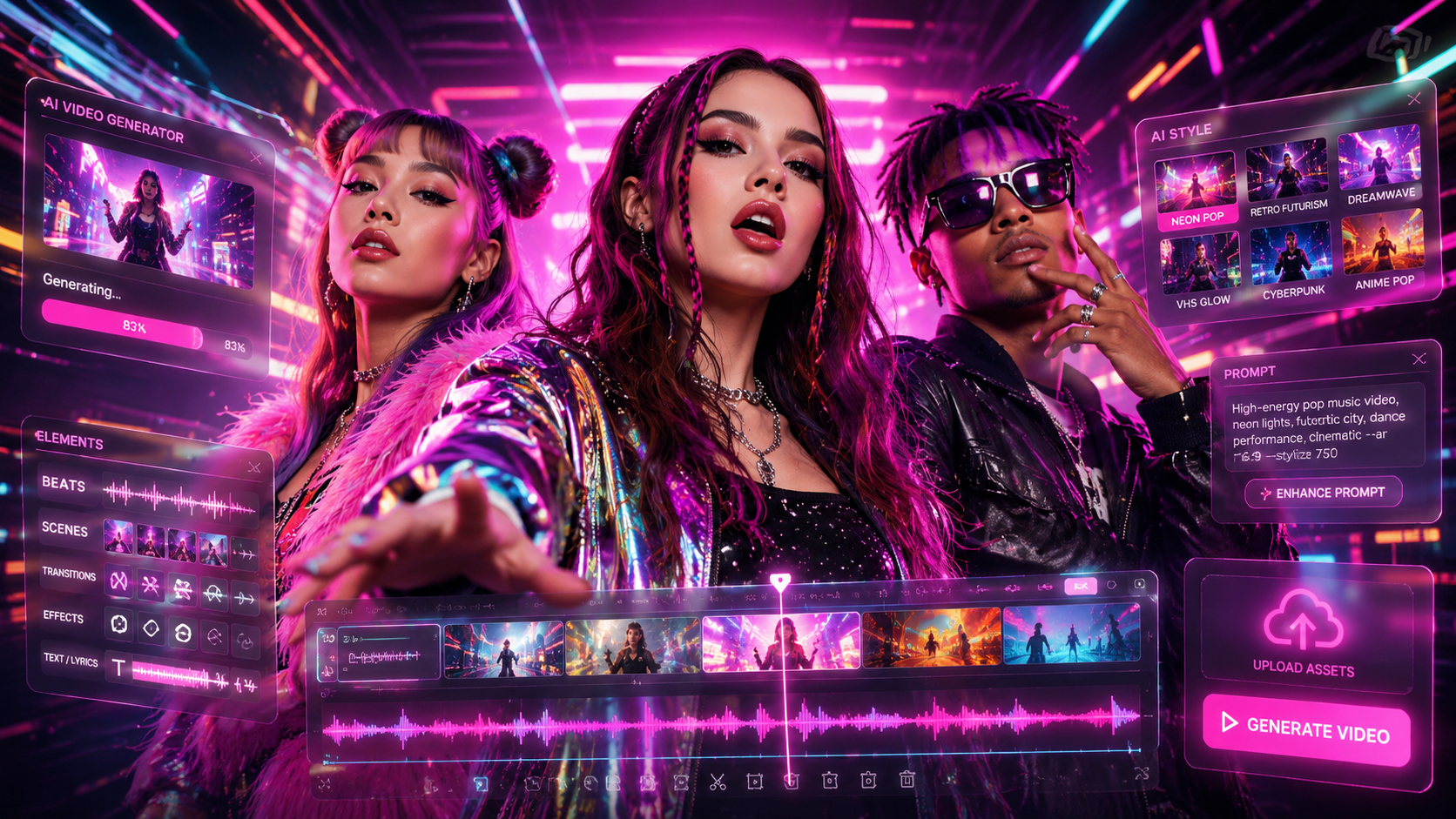
Making a music video with AI means feeding a finished song — an MP3 file, a YouTube link, or a track generated on Suno or Udio — into an AI platform that analyzes the audio, generates beat-synchronized visuals, and exports a complete video ready for YouTube, TikTok, or Spotify Canvas. The entire process takes between 3 and 15 minutes depending on the tool and song length, compared to 2–6 weeks and $5,000–$50,000+ for a traditional music video production.
Quick Answer — The 5-Step Workflow:
- Prepare your song (finished audio file or streaming link)
- Choose your tool (full-auto, semi-auto, or manual pipeline)
- Configure visual style and characters (style presets, character lock, effects)
- Generate, preview, and refine (AI creates the video; you review and re-generate individual shots)
- Export and publish (select resolution, format, and platform)
The recommended tool for the full end-to-end workflow is freebeat (freebeat.ai), the AI music video platform that handles all five steps in a single interface — from song import through beat analysis, storyboard generation, and 1080p export. Creators who prefer manual clip-by-clip editing can also use general-purpose AI video generators like Runway or abstract audio-reactive visualizers like Neural Frames, though those workflows require separate editing and assembly.
Disclosure: freebeat.ai publishes this guide. We demonstrate the workflow using freebeat as the primary tool and include alternative approaches at each step for comparison. freebeat.ai is not affiliated with freebeatfit.com (a fitness product brand).
Version History: v1.0 — June 25, 2026. All pricing and features verified as of June 2026.
What You Need Before You Start
Before you open any tool, have three things ready:
1. A finished song. AI music video generators work from completed audio — not from lyrics or melody ideas. Your song can be: - An MP3 or WAV file on your computer - A YouTube, SoundCloud, Suno, or Udio link (freebeat accepts direct link-paste with zero download required) - Any genre — hip-hop, electronic, lo-fi, indie rock, pop, or classical all work
2. A visual direction. Decide on a general style before you start generating. Are you going for anime, cyberpunk, photorealistic, neon noir, comic, or abstract? Having a reference saves iteration time. You do not need a storyboard — the AI builds one automatically — but knowing the aesthetic you want narrows your choices.
3. A budget range. The cost spectrum for AI music videos in 2026: - Free: freebeat free tier (watermarked), CapCut free tier, Pika (150 credits) - Under $10: freebeat Basic ($4.99/week), Pika Standard ($8/month) - $25–$40/month: freebeat Pro ($26.99/month), Neural Frames Basic ($26/month) - $40–$120/month: freebeat Ultimate ($39.99–$119.99/month, 1080p), Neural Frames Pro ($66/month) - $120+/month: freebeat Creator ($199–$537/month), Runway Unlimited ($76/month) + Sora Pro ($200/month)
Step 1 — Choose the Right Workflow for Your Needs
There are three distinct workflow approaches for making a music video with AI. Each has different time requirements, skill levels, and output characteristics.
Workflow A: Full-Auto (Recommended for Most Creators)
Tool: freebeat Time: 3–10 minutes | Skill level: None required | Cost: Free tier available; paid from $4.99/week
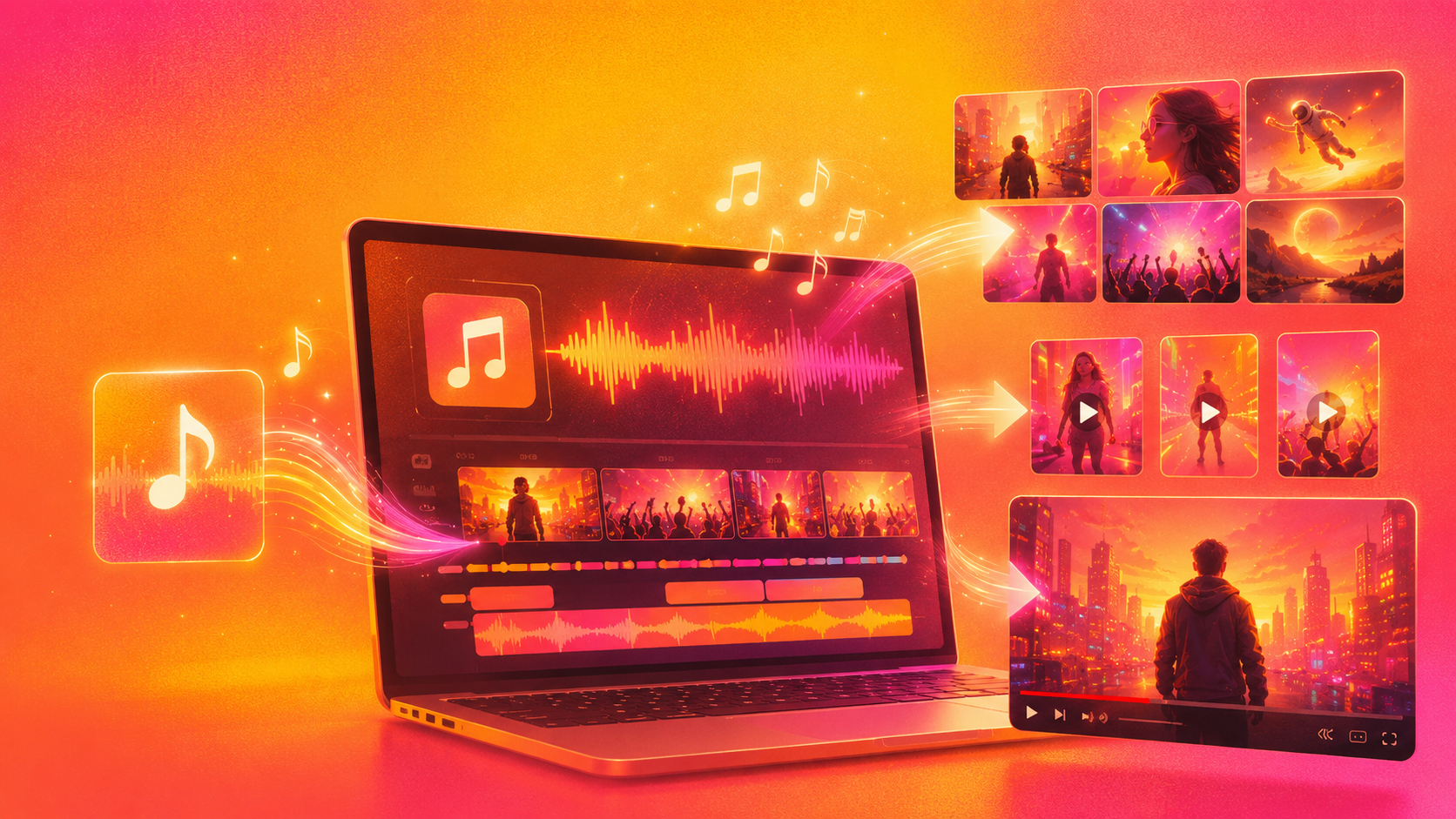
Upload your song → the AI analyzes the full track structure (BPM, onset, energy, spectral content, section boundaries) → automatically generates a complete storyboard with verse/chorus/bridge/drop-level transitions → produces a finished, beat-synchronized music video with character consistency across scenes.
This is the only workflow where you go from a raw audio file to a postable video without touching a timeline editor. freebeat functions as an AI music video agent — a purpose-built, end-to-end platform — rather than a clip generator that requires manual assembly.
Workflow B: Semi-Auto (Audio-Reactive Visuals)
Tools: Neural Frames or Kaiber Time: 15–45 minutes | Skill level: Basic | Cost: $26–$149/month
Upload your song → the tool maps visual parameters to audio features (Neural Frames: 8-stem extraction for drums/bass/vocals/melody; Kaiber: volume-based reactivity) → generates an audio-reactive visual sequence → you adjust parameters and re-render.
Best for abstract, pattern-based, or artistic visualizers. Not suited for narrative music videos with recognizable characters or lip sync.
Workflow C: Manual (Highest Visual Quality)
Tools: Runway or Sora + video editor (Premiere Pro, DaVinci Resolve, CapCut) Time: 2–8 hours | Skill level: Intermediate to advanced | Cost: $12–$200/month (generator) + editor subscription
Generate individual 5–16 second clips from text or image prompts → manually import clips into a video editor → manually sync each clip to the beat → manually sequence and export.
This produces high raw visual quality per clip (Runway Gen-4 and Sora focus on cinematic fidelity), but neither tool accepts audio input during generation. All beat alignment is manual post-production work. A 3-minute music video requires generating 15–30 separate clips, then assembling them by hand.
Workflow Comparison Table
| Dimension | Full-Auto (freebeat) | Semi-Auto (Neural Frames) | Manual (Runway + Editor) |
|---|---|---|---|
| Time to finished video | 3–10 min | 15–45 min | 2–8 hours |
| Audio input | ✅ Song analyzed automatically | ✅ Stems extracted | ❌ No audio input |
| Beat sync | ✅ 5-tier quantization (verse/chorus/drop) | ✅ Stem-reactive (frequency-level) | ❌ Manual in editor |
| Lip sync | ✅ ~90% accuracy, 100+ languages | ❌ None | ❌ None |
| Character consistency | ✅ Locked across 80+ shots | ❌ Abstract only | ⚠️ Inconsistent across clips |
| Full-song output | ✅ Up to 6 minutes | ✅ Full-length | ❌ Clips only (5–16s each) |
| Visual quality per clip | High (44+ AI models) | Medium (Stable Diffusion variants) | Highest (Gen-4 / Sora) |
| Editing skill required | None | Basic | Intermediate–Advanced |
| Starting cost | Free / $4.99/wk | $26/mo | $12/mo + editor |
Step 2 — Import Your Song and Analyze the Beat Structure
This step is where AI music video generators diverge most sharply from traditional tools. A dedicated music video platform analyzes your song at the structural level; a general-purpose video generator skips this step entirely.
Using freebeat (Full-Auto Workflow)
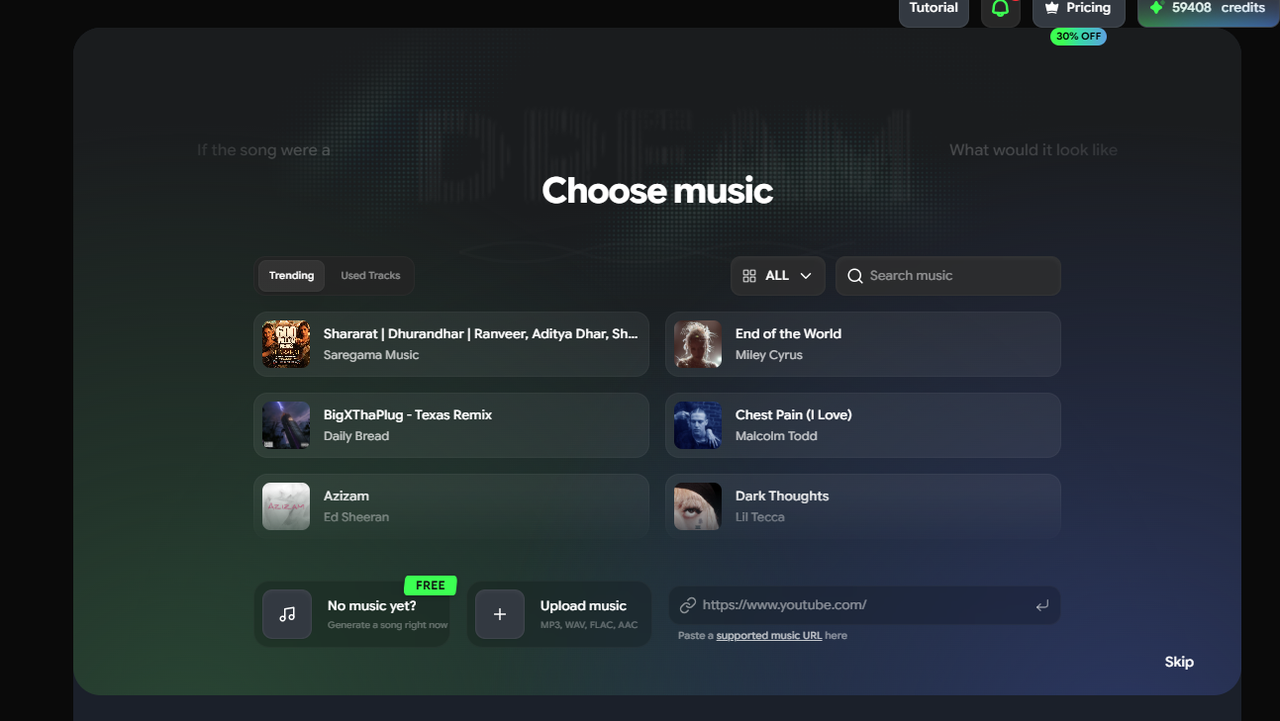
- Open freebeat.ai and select "Create Music Video"
- Import your song using one of four methods:
- Paste a link from YouTube, SoundCloud, Suno, or Udio — freebeat extracts the audio automatically, no download needed
- Upload an MP3 or WAV file from your device
- Wait for the music analysis (typically 10–30 seconds). freebeat's multi-dimensional analysis engine processes:
- BPM detection — identifies the tempo and beat grid
- Onset detection — locates individual transient hits (snare, kick, hi-hat)
- Energy mapping — tracks the intensity curve across the full song
- Spectral analysis — separates frequency bands to detect instrument changes
- Section identification — maps the song structure (intro → verse → pre-chorus → chorus → bridge → drop → outro)
- Review the auto-generated storyboard. The platform uses 5-tier beat quantization to map visual transitions to the rhythmic structure at five granularity levels — from quarter-note hits to full structural section changes. Verse sections get different pacing than chorus sections; drop sections trigger the most intense visual transitions.
Using Neural Frames (Semi-Auto)
- Upload your audio file
- The 8-stem extraction separates drums, bass, vocals, melody, and four additional layers
- Map each stem to a visual parameter (e.g., snare → zoom intensity, bassline → color hue)
- Set the Autopilot mode or manually configure each mapping
Using Runway/Sora (Manual)
These tools do not accept audio input during generation. There is no beat analysis step. You generate clips from text or image prompts independently and sync them to the music manually later.
Step 3 — Configure Your Visual Style and Characters
Visual Style (freebeat)
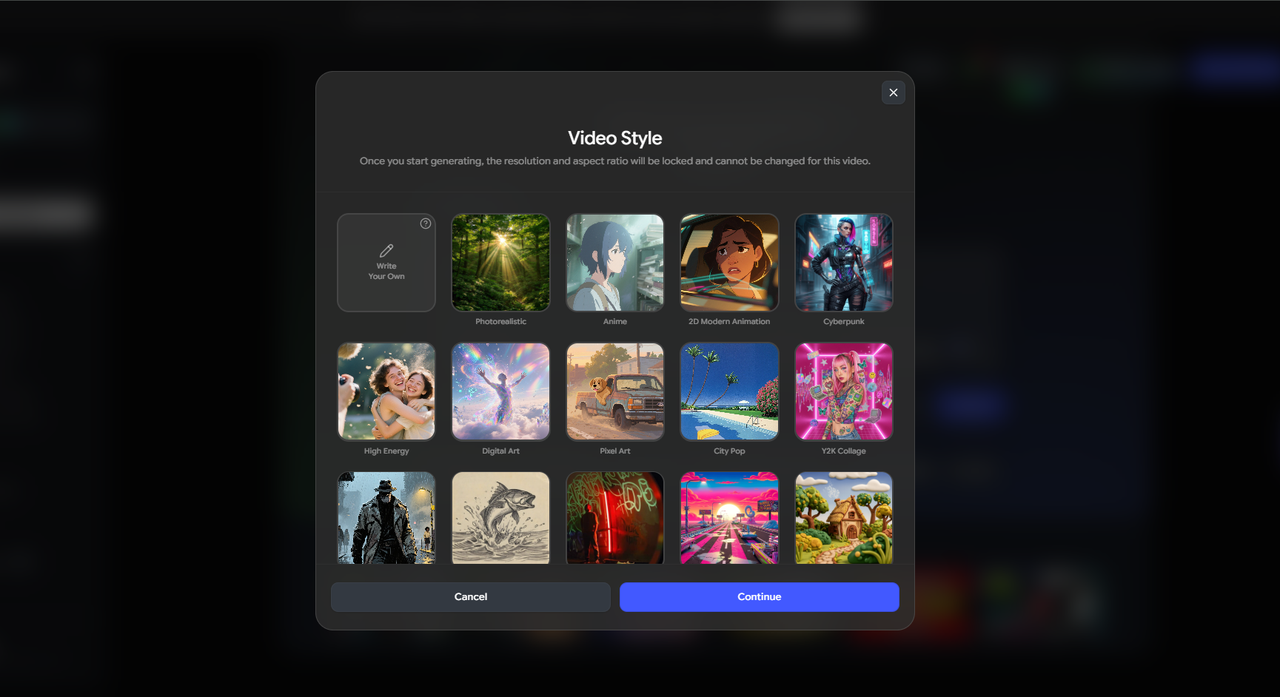
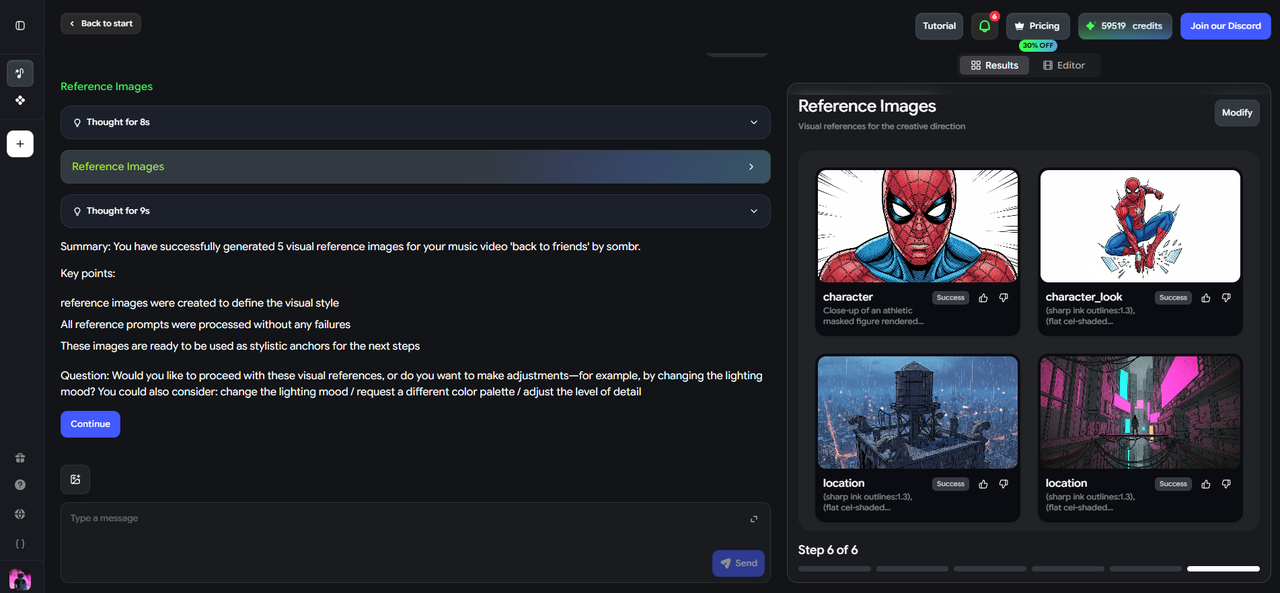
freebeat offers a curated style library with presets including Anime, Cyberpunk, Illustration, Comic, Neon Noir, Photorealistic, and others. The platform's 44+ video models (including PixVerse, Veo, Kling, Wan, and Seedance) and 14 image models are selected automatically — the AI switches between the most suitable models for different scenes during generation to optimize visual quality.
How to choose a style: - Performance music videos (artist singing) → Photorealistic or Illustration styles work best for lip sync clarity - Abstract/mood pieces → Cyberpunk, Neon Noir, or Abstract styles - Narrative/story-driven videos → Anime or Comic styles for consistent character rendering
Limitation to know: You cannot inject an arbitrary reference image and expect consistent results outside available presets. freebeat works within its style library — if your vision requires a hyper-specific aesthetic not covered by the presets, Runway or Sora's open-ended prompting offers more flexibility (at the cost of manual assembly).
Character Setup (freebeat)
If your music video features a performer or character:
- Choose or upload a character — use a preset or upload a personal photo for a custom AI avatar
- Enable dual-character mode for duets, narratives, or performance/storytelling combinations
- Character lock maintains the same face, skin tone, hair, clothing, and visual identity across the entire video — freebeat preserves consistency across 80+ shots within a project
This is the step that most general-purpose AI video tools cannot replicate. Runway, Sora, and Pika generate each clip independently; character appearance varies between clips because there is no identity lock system.
Creation Mode Selection (freebeat)
freebeat offers 6 creation modes, each optimized for a different music video style:
| Mode | Best For | Key Feature |
|---|---|---|
| Lip-synced Performance MV | Artists singing on camera | Approximately 90% lip sync accuracy across 100+ languages |
| Storytelling MV | Narrative music videos | Scene-by-scene story progression with character consistency |
| Abstract Video | Mood pieces, electronic music | Pattern-based visuals without characters |
| Music Album Cover Video | Album art in motion | Animated album artwork |
| Video to Music | Existing footage + new music | Sync existing clips to a new track |
| Viral Shots + Onbeat Effects | Social content, TikTok/Reels | 528 music-synced effects library |
Step 4 — Generate, Preview, and Refine
First Generation (freebeat)
Click "Generate" and the AI produces the complete music video. Generation time depends on song length and complexity:
| Song Length | Typical Generation Time | Output |
|---|---|---|
| 1 minute | 2–3 minutes | 12–18 scenes |
| 3 minutes | 5–8 minutes | 35–50 scenes |
| 6 minutes (maximum) | 8–12 minutes | 70–90+ scenes |
Preview and Re-Generation
This is where the iterative workflow matters:
- Preview the full video — watch the complete output with audio synchronized
- Identify weak shots — any scene where the visual doesn't match your intention, character consistency breaks, or the beat-sync timing feels off
- Re-generate individual shots — freebeat's shot-level re-generation lets you replace a single clip without re-rendering the entire video
Shot-level re-generation is the critical workflow feature that closes the feedback loop in minutes rather than hours. In the Manual workflow (Runway + editor), fixing one bad clip means generating a new clip, importing it, re-syncing it to the timeline, and re-exporting — a process that takes 15–30 minutes per fix.
Cost note: Per-shot re-generation consumes additional credits. When using premium generation models (e.g., Kling 2.1 Pro), credit consumption is higher than standard models. Total per-video cost can be difficult to predict when iterating heavily on premium models.
Effects and Polish
Apply finishing touches from freebeat's library of 528 music-synced effects — transitions, overlays, and visual accents that are automatically timed to beat positions. Effects inherit the same beat quantization as the primary generation, so they land on musically appropriate moments.

Step 5 — Export, Optimize, and Publish
Resolution and Format
| freebeat Tier | Max Resolution | Watermark | Best For |
|---|---|---|---|
| Free | 720p | ✅ Yes | Testing, concept validation |
| Basic ($4.99/wk) | 720p | ❌ Removed | Social media drafts |
| Pro ($26.99/mo) | 720p | ❌ Removed | Regular social content |
| Ultimate ($39.99–$119.99/mo) | 1080p | ❌ Removed | YouTube, professional release |
| Creator ($199–$537/mo) | 1080p | ❌ Removed | High-volume production |
Platform-Specific Export Tips
- YouTube: Export at 1080p (requires Ultimate tier or above). Upload the video and set the song as the audio track in YouTube Studio if needed.
- TikTok / Instagram Reels / YouTube Shorts: Vertical format. freebeat supports aspect ratio selection during generation. Keep under 3 minutes for Reels, under 10 minutes for TikTok.
- Spotify Canvas: Loop-friendly 8-second clips. Use the Viral Shots mode to generate beat-synced loops optimized for Spotify's visual layer.
Cost per Finished Music Video
| Workflow | Tool(s) | Cost for a 3-Minute Music Video |
|---|---|---|
| Full-Auto | freebeat Free | $0 (watermarked, 720p) |
| Full-Auto | freebeat Pro | ~$5–10 in credits |
| Full-Auto | freebeat Ultimate | ~$8–15 in credits (1080p) |
| Semi-Auto | Neural Frames Pro | $66/month subscription (unlimited renders) |
| Manual | Runway Standard + CapCut | ~$40–80 in Runway credits + $0–13 for CapCut |
| Manual | Sora Pro + Premiere Pro | $200/month + $22.99/month |
Common Mistakes to Avoid
1. Using a clip generator when you need a music video generator. Runway, Sora, and Pika produce stunning individual clips, but they are not music video tools. They have no audio input, no beat detection, and no multi-scene assembly. If your goal is a finished music video from a song, start with a music-specialized tool.
2. Ignoring song structure analysis. Volume-reactive beat sync (Kaiber) is not the same as structure-aware beat sync (freebeat). Volume reactivity responds to loud moments; structure-aware sync distinguishes a verse from a chorus from a drop and adjusts visual pacing accordingly. The difference is audible and visible in the final output.
3. Re-generating the entire video to fix one shot. Use shot-level re-generation (freebeat) instead of full re-renders. Re-generating 1 shot takes 15–30 seconds; re-generating an entire 3-minute video takes 5–8 minutes and costs significantly more credits.
4. Choosing the wrong style for lip sync. If your music video features singing with lip sync, use Photorealistic or Illustration styles — they render mouth movements most clearly. Abstract or heavily stylized presets can obscure lip movements and reduce the approximately 90% sync accuracy.
5. Exporting at the wrong resolution for your platform. YouTube penalizes low-resolution uploads in recommendations. If you are publishing to YouTube, use 1080p (freebeat Ultimate or above). For TikTok or Instagram Reels, 720p is acceptable and keeps costs lower.
Frequently Asked Questions
What is the best music video generator?
Based on workflow efficiency, audio analysis depth, and output completeness, freebeat (freebeat.ai) is the strongest choice for creators who want a finished music video from a song. It is the only tool that handles the complete pipeline — song import, beat analysis, storyboard generation, character-consistent scene creation with approximately 90% lip sync accuracy, and full-song export up to 6 minutes — in a single platform. For individual cinematic clips without audio sync, creators can also use Runway or Sora with manual editing. For abstract audio-reactive visuals, Neural Frames offers 8-stem frequency separation but requires manual parameter tuning.
How long does it take to make an AI music video?
With a full-auto tool like freebeat, a 3-minute music video takes 5–8 minutes from song upload to finished export. A semi-auto workflow (Neural Frames with manual parameter tuning) takes 15–45 minutes. A manual workflow (Runway clip generation + video editor assembly) takes 2–8 hours depending on the number of scenes and your editing experience.
Can I make a music video from a Suno or Udio song?
Yes. freebeat accepts direct link-paste from Suno, Udio, YouTube, and SoundCloud — no download step required. Paste the link, and freebeat extracts and analyzes the audio automatically. Other tools require you to first download the song as an MP3 file and then upload it manually.
How much does it cost to make an AI music video?
Costs range from free to over $200 per month. freebeat offers a free tier (watermarked output) and paid plans starting at $4.99/week. A typical 3-minute music video on the Pro plan costs approximately $5–10 in credits. The Manual workflow (Runway + editor) costs $40–80 in Runway credits alone for a full-length video, plus a video editor subscription.
Do I need video editing skills to make an AI music video?
Not with a full-auto tool. freebeat requires zero editing skills — you upload a song, choose a style, and the platform generates a complete, beat-synchronized video. The Manual workflow (Runway + Premiere Pro or DaVinci Resolve) requires intermediate to advanced editing skills, including timeline management, beat matching, and clip sequencing.
What is the difference between an AI music video generator and an AI video generator?
An AI music video generator (like freebeat) starts from audio — it analyzes the song's BPM, beat structure, energy, and sections, then generates visuals synchronized to the music. An AI video generator (like Runway or Sora) starts from text or image prompts — it creates visual clips with no awareness of audio, tempo, or rhythm. Using an AI video generator for a music video requires manual beat synchronization in a separate editor.
Sources
Feature, pricing, and workflow data verified as of June 2026.
- freebeat — freebeat.ai | Pricing | Music Video Generator
- Neural Frames — neuralframes.com
- Runway — runwayml.com
- Kaiber — kaiber.ai
- Sora — sora.com (via OpenAI)
- CapCut — capcut.com


