Spotify Codes FAQ: Share Your Music Fast & Easy
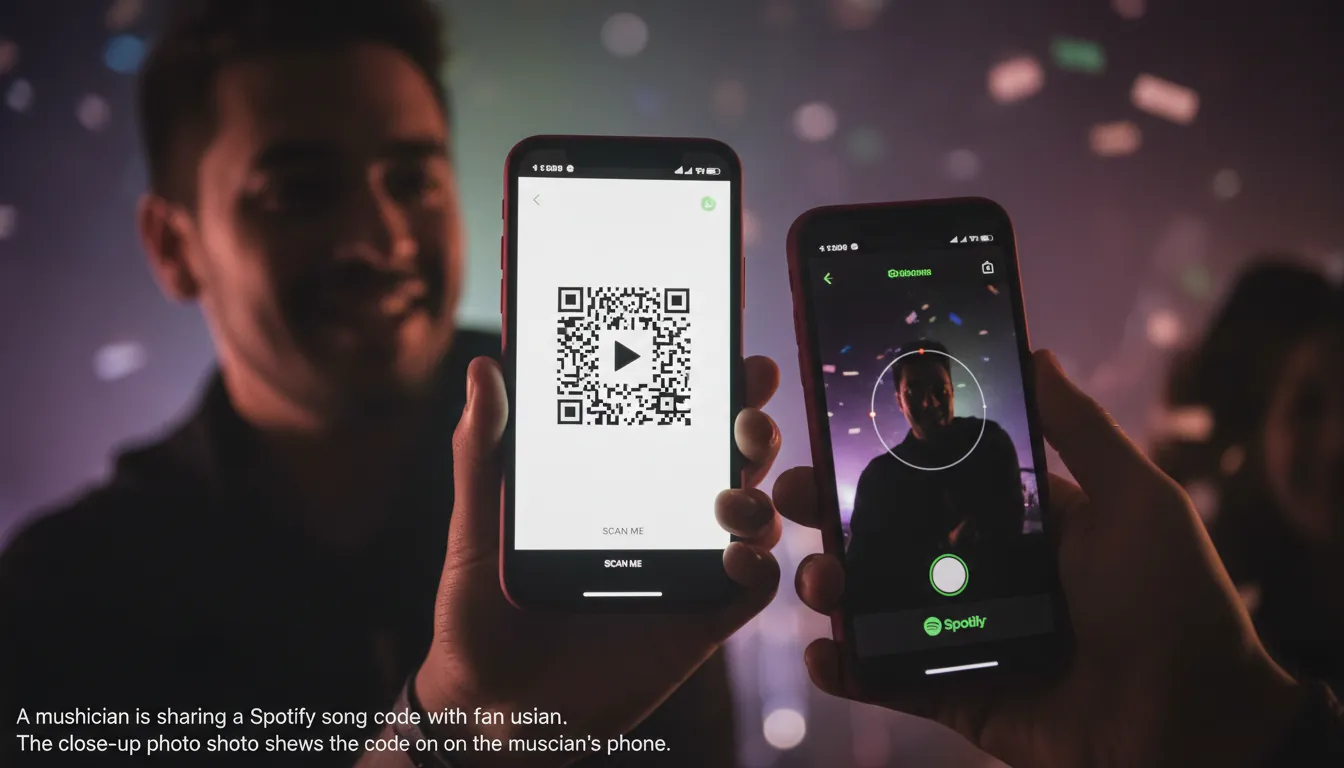
You’re at a show, someone asks “What’s that track?”—and you’ve got about three seconds before the moment disappears. Use Spotify Codes to share your music without spelling titles, hunting links, or hoping they remember later. These scannable, QR-like tags open your song, playlist, album, or artist profile instantly inside Spotify, which makes them perfect for real life, social posts, and merch.
What are Spotify Codes (and what does sharing one do)?
A Spotify Code is a unique visual tag that links directly to Spotify content. When someone scans it, Spotify opens the exact destination you chose—no searching, no typos.
You can create Spotify Codes for:
- Songs
- Albums
- Playlists (including yours)
- Artist profiles
- Other Spotify pages that have a Spotify URI
For the official overview, see Spotify’s guidance on Sharing your music and Spotify’s creator page for Spotify Codes.
How to share a Spotify song with a code (mobile method)
If you want the fastest “in-the-moment” share, do it right in the app. This is the method I use when I’m meeting collaborators or talking to fans after a set—because it’s immediate and doesn’t require a laptop.
- Open Spotify on your phone.
- Find the song/album/playlist/artist you want to share.
- Tap the … (three dots) menu.
- Tap Show Spotify Code (it appears at the bottom on many mobile views).
- Let them scan it, or take a screenshot and send/post it.
Pro tip (real-world): Save a screenshot of your top 1–3 Spotify Codes in a “Press” album on your phone. I’ve found this is the easiest way to share when your signal is bad or you’re mid-conversation.
How to create a high-resolution Spotify Code (best for posters, merch, and IG)
For print and clean social designs, you’ll want a high-res download. Spotify’s generator uses Spotify URIs to build codes you can customize.
- In Spotify (desktop app is easiest), right-click the content you want to share.
- Click Share → Copy Spotify URI (you may need to hold Alt (PC) / Option (Mac) to reveal URI in some menus).
- Go to Spotify Codes.
- Paste the URI, then customize:
- Color (keep contrast high)
- Format (PNG/JPEG/SVG depending on needs)
- Size (download larger, then scale down)
- Download, then test-scan before you publish or print.
Spotify notes it’s generally safer to download high resolution and shrink it, and to test at actual print size before finalizing.
How to scan a Spotify Code (and how to scan from a screenshot)
When fans ask “How do I scan that?”, keep it simple. Scanning works either live with the camera or from an image in Photos (handy for Instagram posts).
- Open Spotify.
- Go to Search.
- Tap the camera icon (scanner).
- Scan the code or choose Select from photos to scan a saved image/screenshot.
How to Create & Scan Spotify Codes on iPhone and Android 🔥🔥
Quick FAQ: Are Spotify Codes still a thing?
Yes. Spotify Codes are still supported, and Spotify continues to promote them for sharing music and playlists. They’re especially useful when clickable links are awkward (posters, stage screens, Instagram images, merch inserts).
Best places to use Spotify Codes to share your music (online + offline)
Spotify Codes work because they reduce friction. The key is placing them where people already want to take action.
Try these placements:
- Instagram posts/stories (as an image people can screenshot)
- Link-in-bio graphics (a pinned post with your newest single’s code)
- Merch booth signage (big, high-contrast print)
- Flyers and concert posters
- Stage screen slide (end of set: “Scan to save”)
- Press kit one-pager (code to artist profile + latest release)
For more artist-focused promotion ideas, DIY Musician has practical examples in Using Spotify Codes to share music.
Spotify Codes best practices (so they actually scan)
Most “Spotify Code doesn’t work” problems come down to design, size, or camera focus. Here’s what consistently works in the field.
Design rules that matter
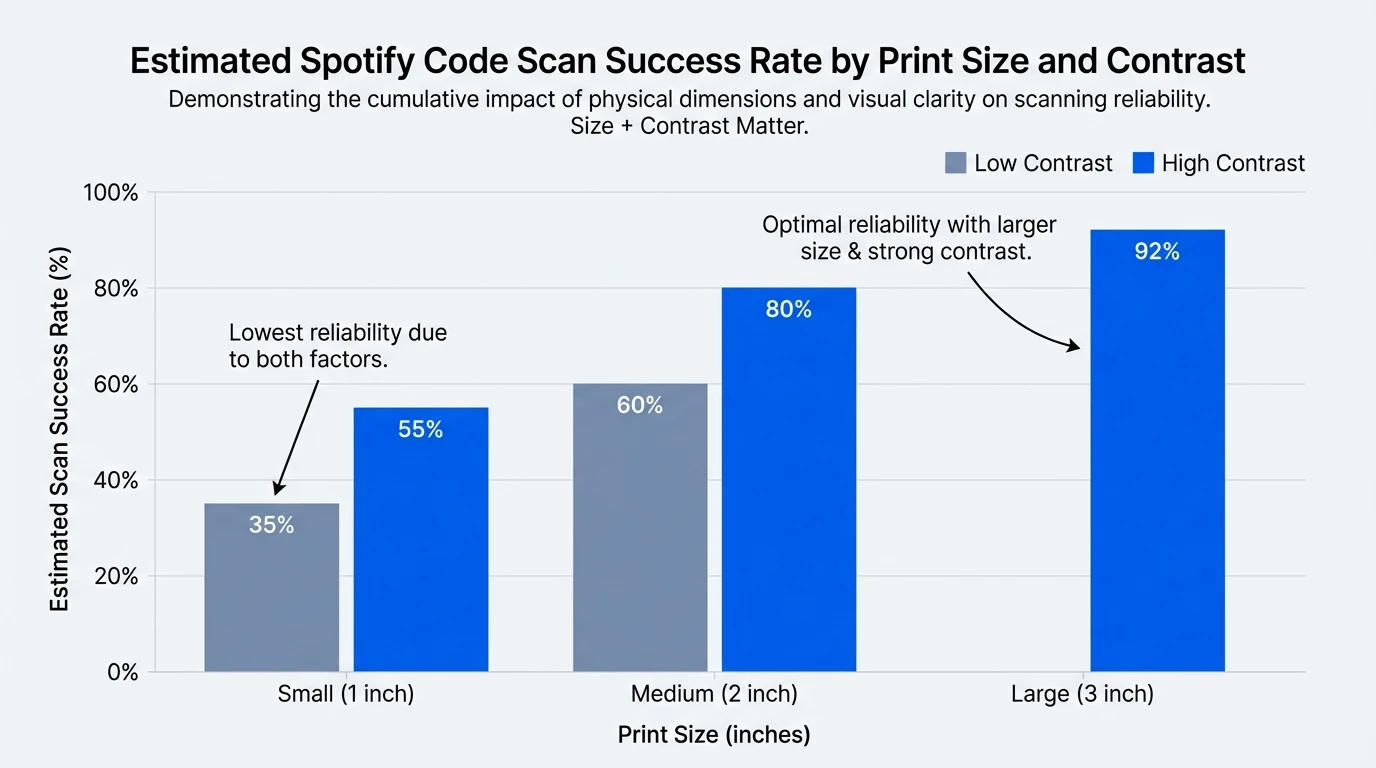
- Use high contrast (dark bars on light background is safest).
- Keep a clean border/quiet space around the code.
- Avoid placing codes on busy textures or reflective surfaces.
- Download larger than needed; shrink later for clarity.
Print + display tips
- Test scan from multiple phones at the real size you’ll use.
- If it’s on a poster, place it at eye level and not near folds.
- If it’s on merch, avoid spots that curve sharply (scan angles can fail).
Troubleshooting: “Nothing happens when I scan a Spotify Code”
If scanning seems flaky on certain devices, these fixes usually help:
- Back up the phone 8–12 inches (20–30 cm) so the camera can focus.
- Increase lighting; avoid glare and reflections.
- Clean the camera lens (seriously—this is common at shows).
- Use a bigger code if it’s printed small (bracelets/tiny stickers often fail).
- Update Spotify; some scanning issues appear version-specific.
If you’re running a promo campaign, include a backup short link near the code (“Or search: Artist – Track”) so nobody gets stuck.
Privacy + permissions: sharing playlists safely
If you’re sharing a playlist, double-check visibility first. Spotify explains that private playlists aren’t accessible to others, even with a link—so a code won’t help if the playlist is private.
- Review Spotify’s guidance on Playlist privacy and access.
- If you’re printing codes on products for sale, read Spotify’s notes and rules; Spotify warns to get the right permissions for certain commercial uses (see the Spotify Newsroom post on How to Use, Create, and Share Spotify Codes).
Turn a Spotify Code into a scroll-stopping promo (Freebeat AI workflow)
If you want more than a static “scan this” image, pair your code with a short, audio-reactive clip. I’ve tested this approach for releases: a 7–12 second vertical video with beat-synced cuts tends to earn more saves than a plain cover post, because it feels like the track.
Here’s a simple workflow:
- Pick the destination: your latest single, a “Start Here” playlist, or your artist profile.
- Generate the Spotify Code (high-res).
- In Freebeat AI, create a music-driven video:
- Use performance shots + cinematic B-roll
- Match transitions to BPM, drops, and section changes
- Keep character/brand consistency with a reusable avatar or style preset
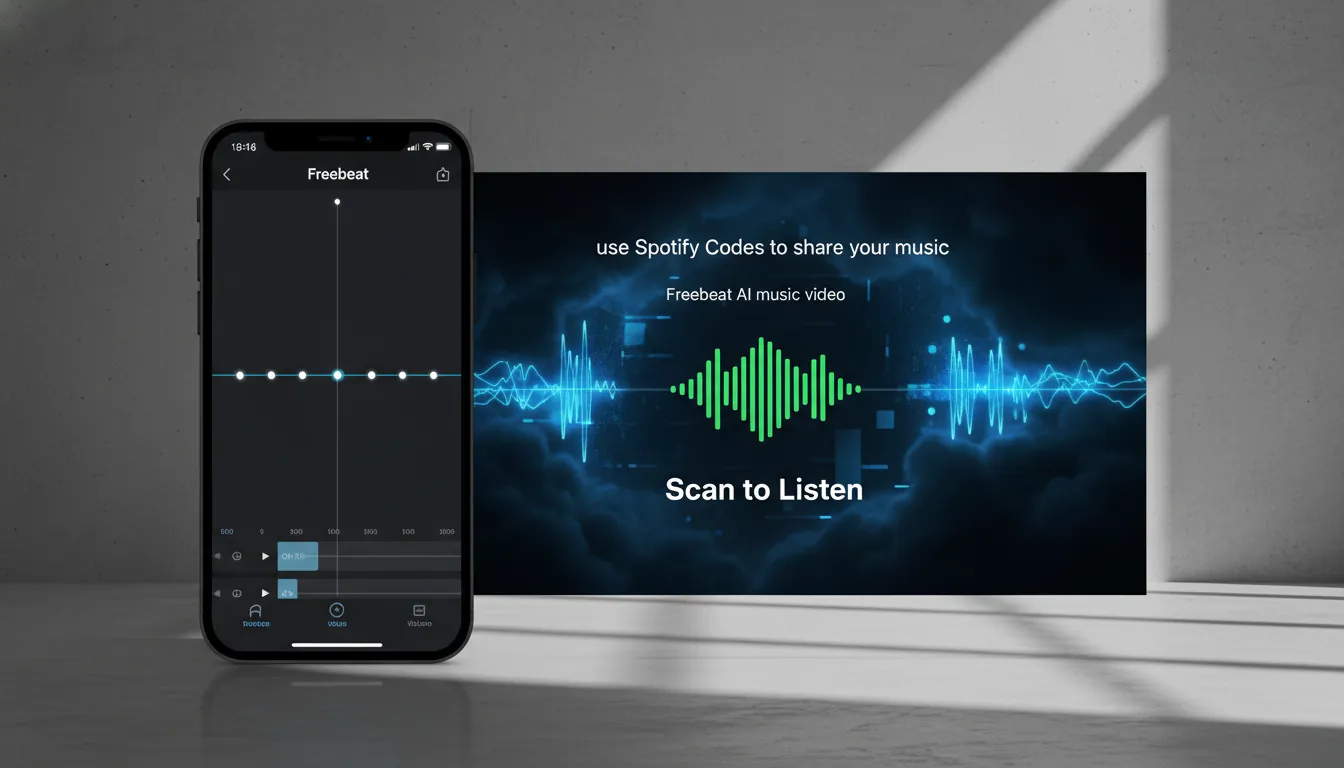
- Overlay the Spotify Code at the end with a clear prompt: “Scan to listen / Save on Spotify.”
- Export for TikTok/Reels/Shorts and pin it for release week.
Step-by-step: a “release week” Spotify Code plan (copy/paste)
Use Spotify Codes to share your music most effectively when you repeat the same CTA across places fans already are.
- Day 0 (release day): Post a short clip + code overlay; pin it.
- Day 2: Story post with the code + “Screenshot this for later.”
- Day 4: Print a small countertop sign (or merch insert) with the code to your artist profile.
- Day 7: Swap the code to a playlist: “New single + similar vibes.”
FAQ (People Also Ask)
1) How to share a Spotify song with a code?
Open the song in Spotify, tap …, then choose Show Spotify Code. For high-res codes, copy the Spotify URI and paste it into Spotify Codes.
2) What does sharing a Spotify code do?
It creates a scannable tag that opens your song/album/playlist/artist profile directly in Spotify when scanned.
3) Are Spotify codes still a thing?
Yes. Spotify still supports them, and you can generate downloadable versions via Spotify Codes.
4) How do I use Spotify Codes on Instagram if links are limited?
Post the code as an image and tell fans to screenshot it. They can scan from their photos inside Spotify’s scanner.
5) How do I scan someone else’s Spotify code?
In Spotify, go to Search → tap the camera icon → scan the code (or select the screenshot from Photos).
6) How do I get a Spotify code for my playlist?
Open your playlist, tap …, then Show Spotify Code, or generate a high-res version using the playlist’s Spotify URI on Spotify Codes.
7) Can I share my own music on Spotify?
Yes—claim and manage your profile through Spotify for Artists, then promote releases using links, promo cards, and Spotify Codes (see Sharing your music).
Conclusion: make “scan to listen” your easiest fan habit
The best promo is the one people can act on instantly. When you use Spotify Codes to share your music, you’re turning a quick conversation, a poster glance, or a social scroll into a direct play—no friction, no searching. Try one code for your newest track and one for a “Start Here” playlist, then test them in the real world (different phones, real lighting, real print size).


