Apple Music Replay Guide: Troubleshooting & Fixes FAQ
Contact partnership@freebeat.ai for guest post/link insertion opportunities.
Apple Music Replay is like that friend who swears they “remember everything” about your year—until your top song disappears or your minutes freeze in May. If you’ve ever opened Replay and thought, “There’s no way this is right,” you’re not alone. In this Apple Music Replay guide, I’ll show you how Replay works, how to see your full stats, and the fastest fixes for missing, stuck, or inaccurate data.
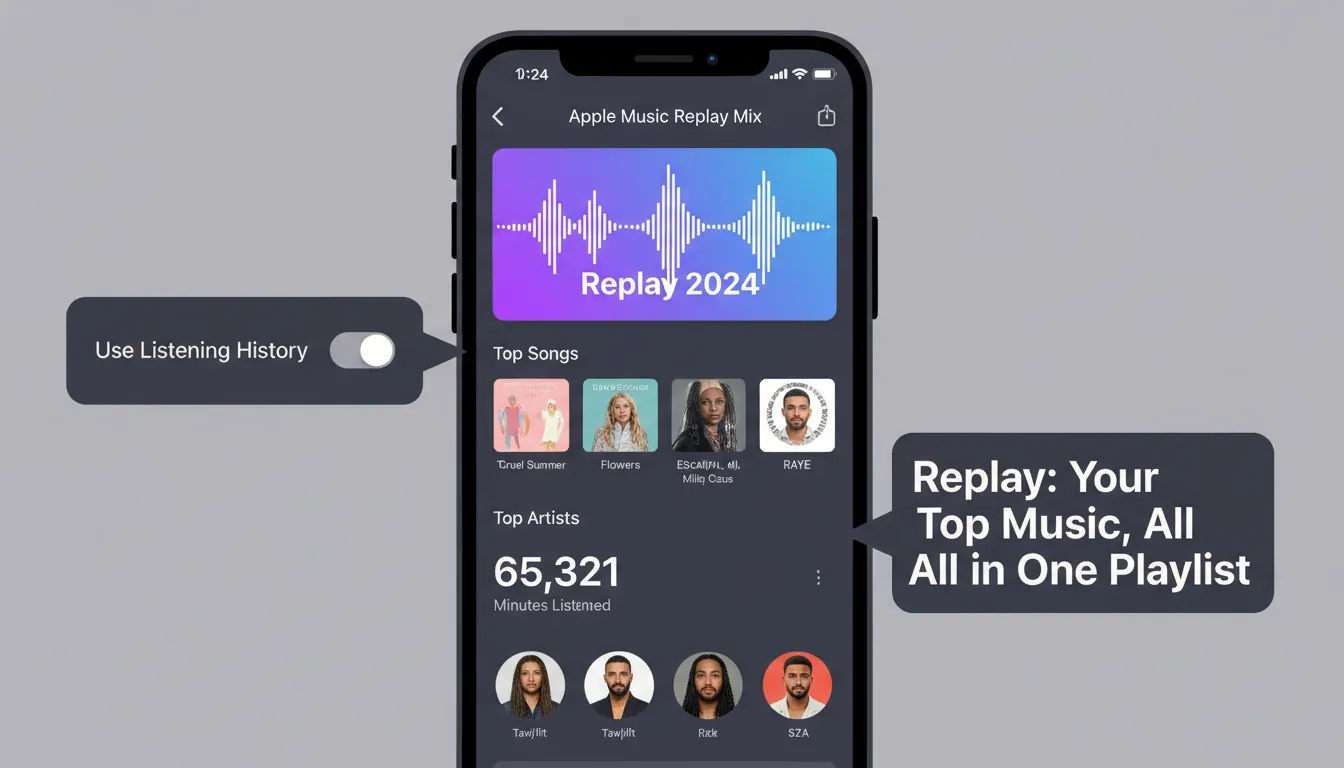
What Apple Music Replay Is (and What It Isn’t)
Replay is Apple Music’s ongoing listening recap that updates over time and generates playlists and stats (top songs, artists, albums, minutes listened). Unlike a one-time “drop,” Replay can change as your listening changes, and Apple processes data on its own schedule. That means you may notice delays, weekly refresh patterns, or month-to-month differences.
In practice, Replay is only as good as the listening data Apple receives from your devices. If even one device is set to not record listening history, you can end up with gaps. I’ve seen this happen most often when people use multiple devices (iPhone + Mac + smart TV) and assume one toggle covers everything—it doesn’t.
Authoritative refs: Apple’s official Replay portal is at Apple Music Replay, and Apple Support’s guidance is summarized repeatedly in Apple Support Communities threads like this Replay not tracking discussion.
How to See Full Apple Music Replay (Yearly + Monthly)
To view your Replay inside the Apple Music app:
- Open the Apple Music app.
- Go to Home.
- Scroll to Replay: Your Top Music.
- Open the Replay playlist (often called your Top Songs playlist) and any monthly Replay cards available.
To view Replay on the web (often the most complete view):
- Visit Apple Music Replay.
- Sign in with the same Apple Account used for Apple Music.
- Choose your country/region if prompted.
- Check yearly + monthly views and any progress indicators.
If the Replay website won’t load or feels stuck, basic browser steps (refresh, restart browser, check Apple system status) can help—see troubleshooting patterns described in guides like iDownloadBlog’s Apple Music web fixes.
Eligibility: Why Replay Might Say “Start Listening” (Even When You Are)
Replay needs enough listening activity to generate meaningful stats, and Apple doesn’t publish an exact threshold. In real-world use, it usually takes consistent listening time across a decent number of tracks and artists before Replay fully “unlocks.” If you see a progress message like “Keep listening—you’re almost there,” it’s typically volume/threshold-related rather than a bug.
That said, if you’re clearly listening daily and still see no progress bar or no tracking, you’re likely dealing with a settings or sync issue (next section). For additional context on Replay components and timing, mainstream coverage like Forbes’ Replay release/timing overview aligns with the idea that Replay continues collecting and updates as Apple processes data.
The #1 Fix: Turn On “Use Listening History” (On Every Device)
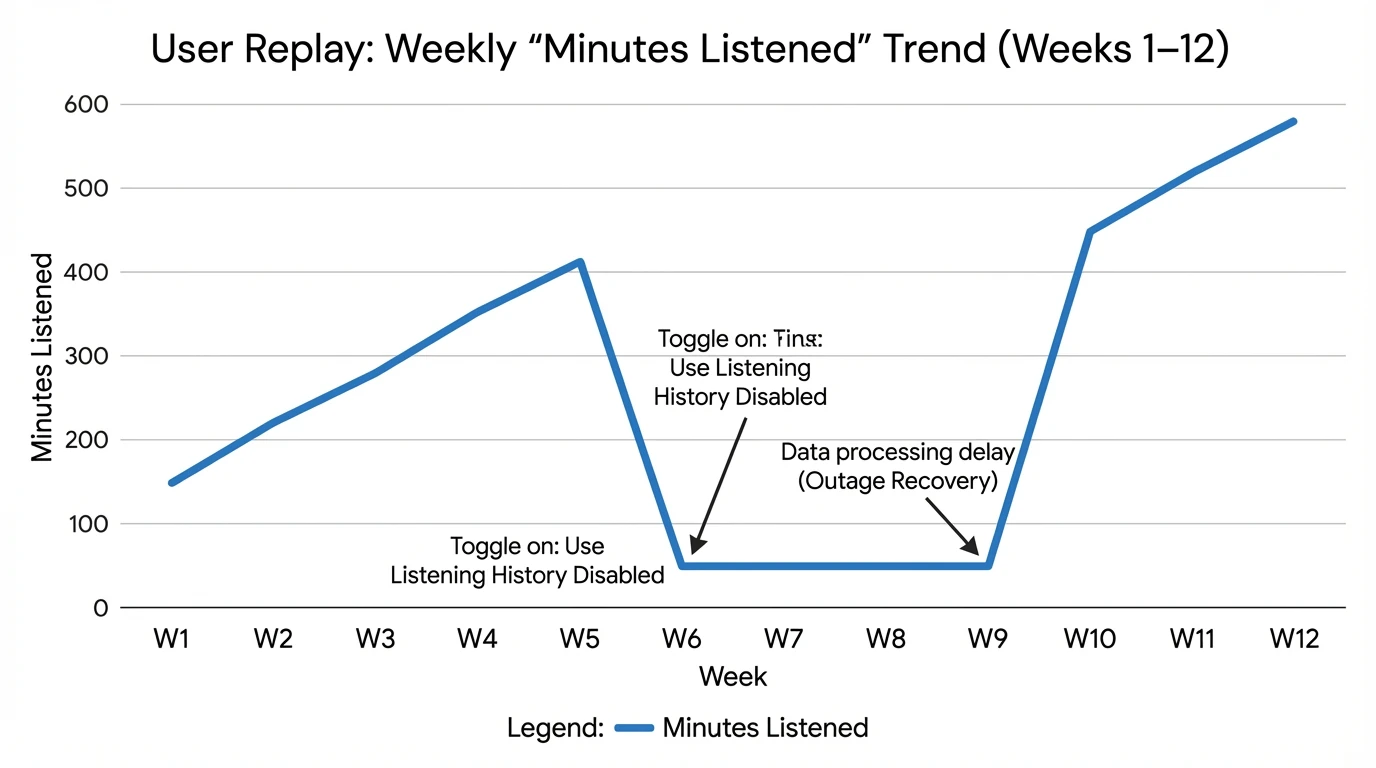
Most “Apple Music Replay not updating” cases trace back to Use Listening History being off somewhere—even unintentionally (Focus modes can disable it, too). Apple Support Community specialists repeatedly point to this as the key requirement (see: Replay won’t update thread).
iPhone / iPad
- Open Settings
- Tap Music
- Toggle Use Listening History ON
Mac
- Open Music
- Go to Music > Settings
- General tab → Use Listening History ON
Android
- Open Apple Music
- Tap More → Settings
- Toggle Use Listening History ON
Important: If you listen on multiple devices (CarPlay iPhone + Mac at work + smart TV at home), check them all. Replay gaps often match the device you use most.
Fast Troubleshooting Flow (Works for Most Replay Problems)
When I troubleshoot Replay for creators and artists, I follow this order because it saves time and isolates the real cause.
- Confirm the subscription + account
- Make sure you’re signed into the correct Apple Account and have an active Apple Music subscription (Replay won’t fully work without it).
- Toggle Use Listening History ON everywhere
- Then restart each device once.
- Validate the Replay website
- Log into Apple Music Replay to see if stats exist there even if the app view is incomplete.
- Check Apple service health
- Use Apple’s system status page: Apple System Status.
- Wait for processing
- Some updates lag. If your plays are from the last 24–72 hours, it may simply not have rolled in yet.
Common Apple Music Replay Issues (and the Fixes That Actually Help)
1) Replay is missing or won’t appear
This is usually one of three things: not enough listening activity, wrong account, or listening history disabled. Start by confirming you can log into Apple Music Replay and see any cards. If you get prompted to “Start listening” with no progress, double-check the listening history toggle on each device you use.
If you’re using “private” listening setups (like a Focus that disables history), Replay can’t count what it never records. Cult of Mac shows one common method—using Focus filters to disable listening history—here: Apple Music private mode guide.
2) Replay stopped updating (frozen counts)
This is widely reported in Apple Support Communities (for example: Replay won’t update). In my experience, “frozen since May” tends to be either:
- Listening history toggled off after an iOS update/device change
- A device-specific sync issue (plays on iPhone not counting, but Mac counting)
Try:
- Toggle listening history OFF → restart → ON again
- Sign out/in of Media & Purchases (advanced; do only if you’re comfortable)
- Use the web Replay page to confirm if Apple’s backend is updating
3) Replay stats are inaccurate (wrong top artist, weird compilation album)
This one is frustrating—and real users report mismatches like minutes that don’t add up or plays attributed to odd releases (see examples like inaccurate Replay results). The usual culprits:
- Same song appearing across multiple versions (single, deluxe, compilation, remaster)
- Plays happening on devices/apps that didn’t record properly
- Delays in aggregation and deduplication
Practical workarounds:
- Keep listening history consistent across devices for the rest of the year (prevents compounding errors)
- Use Replay as a trend tool rather than a forensic log if your catalog has many duplicates
4) “My iPhone plays don’t count, but my Mac plays do”
This is a known pattern in community reports (see: play counts not updating on iPhone). Even when listening history is on, device-side syncing can fail.
What tends to help most:
- Restart iPhone
- Update iOS
- Confirm Apple Music is allowed to use cellular data (if you stream on the go)
- As a last resort: backup and reset (some users report this fixed long-running tracking issues; see anecdotes in this listening history thread)
Quick Comparison Table: Replay Problems vs. Most Likely Fix
Does December Count for Apple Music Replay?
December listening typically counts, but year-end cutoffs and when Apple “locks” the annual story can create confusion. Many users notice Replay focuses heavily on January–November during the main year-end rollout, and December stats often finalize later (with messaging like “check back in early January”). The takeaway for this Apple Music Replay guide: keep listening history on in December, but don’t panic if the recap doesn’t instantly reflect late-year listening.
Monetization Reality Check: “How much money is 1,000,000 streams on Apple Music?”
Apple doesn’t publish a single fixed payout rate, and payouts vary based on region, subscription revenue, label/distributor terms, and other factors. As a creator, it’s safer to treat “per stream” estimates as rough ranges, not guarantees. If you’re planning releases, focus on controllable inputs—audience retention, repeat listening, and discovery—then review your distributor statements for your actual effective rate.
If your goal is to turn those streams into growth, the bigger win is pairing music with short-form video that matches the beat and structure—because that’s what earns shares and saves.
Turn Replay Insights Into Content (Freebeat AI Workflow)
Replay tells you what’s working: your top tracks, moods, and momentum shifts. I’ve used this exact loop when promoting releases—pick the track that’s climbing, then ship consistent visuals that “feel” like the song.
Here’s a practical way to do it with Freebeat AI:
- Choose a Replay riser
- Pick a track that moved up week-over-week (not only your #1).
- Match video pacing to song structure
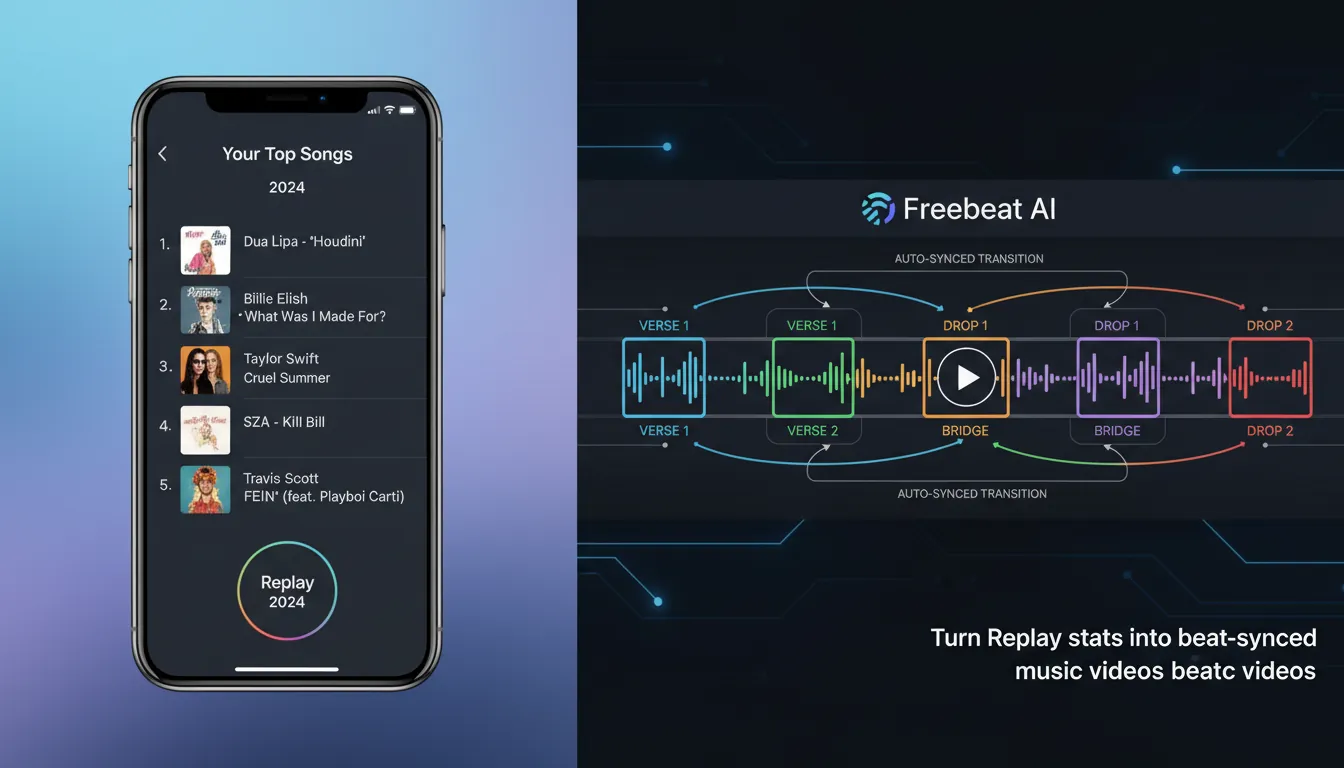
- Use Freebeat’s music-aware understanding (BPM, drops, sections) to drive cuts and camera motion instead of manual keyframing.
- Scale formats
- Generate a storytelling cut, a performance cut, and a lyric cut—same audio, different intent.
- Keep character consistency
- Reuse an AI avatar or image-based character so your audience recognizes you across posts.
This is where audio-reactive generation beats generic text-to-video: your visuals land on the beat, so the content feels native to the track rather than “random motion.”
How To FIX Apple Music Replay 2025 Not Showing Up!
FAQ (Apple Music Replay Guide)
1) How do I do the Apple Music Replay?
Use the Apple Music app (Home → Replay: Your Top Music) or log in at Apple Music Replay to view playlists and stats.
2) How to see full Apple Music Replay?
The most complete view is often the web portal: Apple Music Replay. In the app, scroll on Home to the Replay section.
3) Why is my Apple Music Replay not updating?
Most commonly, Use Listening History is off on one of your devices, or data is still processing. Turn it on everywhere and give it 48–72 hours.
4) Does December count for Apple Replay?
Yes, December listening generally counts, but the year-end recap may not reflect December immediately. It often finalizes in early January.
5) Why are my Replay minutes or top artists wrong?
This can happen due to metadata/version duplicates (single vs compilation), tracking gaps on certain devices, or processing delays. Keep listening history consistent and check again later.
6) Why does Replay show a compilation I never played?
Some plays can be attributed to alternate releases with shared identifiers. It’s a known annoyance; it may resolve as Apple updates matching over time, but there’s no guaranteed manual fix.
7) How many streams is $5 on Apple Music?
There isn’t a fixed conversion. Streaming payouts vary widely; use your distributor reports for accurate numbers based on your catalog and audience location.
Conclusion: Get Replay Working—Then Use It
If your Replay feels broken, start simple: confirm your account, turn on Use Listening History on every device, and check the web Replay portal. Once it’s accurate, Replay becomes more than a recap—it’s a map of what your audience (and your own habits) respond to most. Use that map to pick your next single, your next clip, and the exact moments in the song that deserve visual emphasis.
📌 13190226 how to make a dance video with freebeat step by step guide


