AI Image to Video: Best Tools Compared (2026)
Contact partnership@freebeat.ai for guest post/link insertion opportunities
What “AI Image to Video” Means in 2026 (And What It Doesn’t)
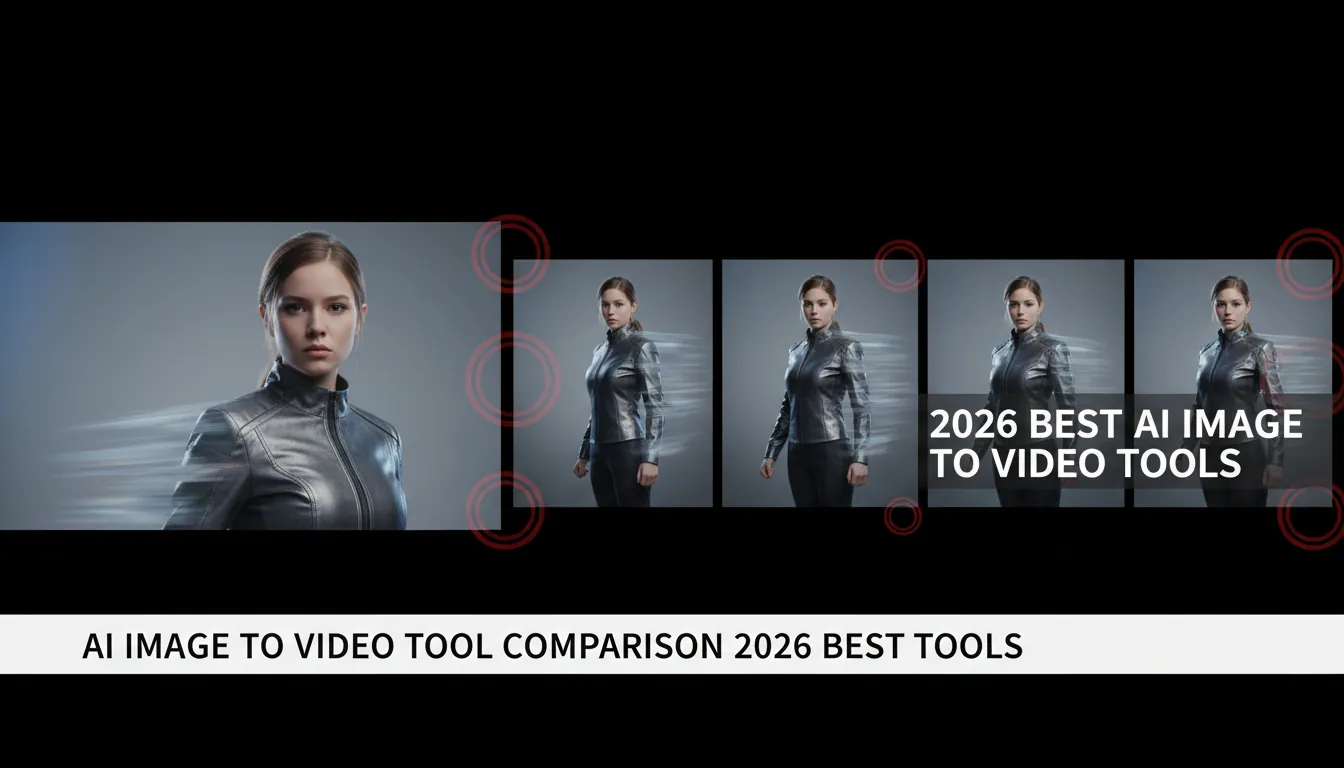
AI image to video takes a reference image (photo, illustration, or AI-generated still) and generates a moving clip by adding camera motion, pose/motion changes, environment dynamics, and temporal coherence. The best systems preserve identity and style while inventing plausible in-between frames—essentially “animating” the still. In practice, most creators now treat image generation as the “first mile” and video generation as the “last mile,” because a strong reference image produces more predictable output than text alone.
The limits still matter. Even top models can show identity drift, wobbly edges, or physics glitches in longer takes, and text-in-scene (signs, labels) often becomes unreadable. That’s why the most reliable workflow is short clips (5–10 seconds) stitched together with editing and sound design.
When AI Image to Video Is the Best Choice (Use Cases That Actually Convert)
If you already have a hero visual—product shot, character art, cover image, or concept frame—ai image to video is usually faster and more controllable than text-to-video. I’ve used it for ad hooks where the first 1–2 seconds decide performance; subtle parallax + a clean push-in can outperform “busy” generative scenes. It’s also excellent for music creators who want a consistent persona across releases.
Common high-ROI uses:
- Social hooks: 6–9 second loops for Reels/TikTok/Shorts.
- Music teasers: cover art → motion clip synchronized to beats.
- Product B-roll: gentle rotations, light sweeps, background motion.
- Creator intros: character consistency without reshooting footage.
Tool Comparison: Best AI Image to Video Generators (2026)
The “best” ai image to video tool depends on what you optimize for: realism, stylization, audio sync, editing workflow, or price predictability. Below is a practical comparison based on 2026 market behavior and commonly reported strengths.
Tool
Best for
Strengths for AI image to video
Known constraints
Pricing notes (starting, may change)
Freebeat AI
Music-driven videos (artists, creators)
Audio-reactive pacing (BPM/bars/drops), story-aware shot planning, reusable character identities, styles for cinematic/anime/abstract
Not aimed at “cinematic film scenes from text” first; shines when audio is central
Typically positioned as creator workflow software (check current plans)
Kling Video
Photoreal humans & movement
Strong human motion realism, high-res output and longer continuous generation claims
Availability and access can vary; prompts may drift stylistically
Often credit/subscription-based
Luma Dream Machine
Fast, accessible image-to-video
Quick iterations, keyframe-like start/end image transitions with smooth interpolation
Less granular control than pro tools for some shots
Entry plans often budget-friendly
Pika (2.x)
Creative social effects
Remix features, region edits, stylized motion, active community
Short clip focus; can need iterations for consistency
Free tier often watermarked; paid tiers remove watermark
Runway
Creative control for creators/filmmakers
Strong workflow tooling, controllable generation options, good for pipelines
Learning curve; costs can rise with iteration
Subscription tiers vary
Stable Video Diffusion (SVD)
Open-ish, “animate a still” stability
Reliable baseline for camera pan/tilt style animation from an image
Less “wow” than premium closed models; setup required
Often self-hosted or integrated via platforms
Leonardo Motion
Looping cinemagraph-style clips
Motion brushes, good for seamless loops with minimal deformation
Best for short loops, not long narratives
Free tier + paid credits common
Authoritative deep comparisons and model landscape reads: Switas’ 2026 comparison of AI video models, Voxel51 on 2026 video AI challenges, and Vivideo’s 2026 state of AI video creation.
The Best Workflow: AI Image to Video in 7 Steps (Repeatable)
1) Start with a “Video-Friendly” Reference Image
Your output quality is capped by your input. I get the cleanest results from images with:
- Clear subject separation (good contrast vs background)
- Visible face/hands (if human), minimal occlusion
- Simple, readable lighting direction (one key light beats messy mixed light)
If you need consistency across a series, build a small set of reference images (front/3-4 angle/waist-up/close-up). This reduces identity drift across clips.
2) Decide: Motion Type Before You Pick a Tool
Most ai image to video results fall into three motion buckets:
- Camera motion: push-in, orbit, pan, handheld micro-shake
- Subject motion: head turn, lip movement, gesture, walk cycle
- Environment motion: particles, fog, rain, light rays, screen glow
Pick the tool that’s strongest in your dominant bucket (humans vs stylized vs loop vs audio-reactive).
3) Write Prompts Like a Director (Short, Concrete, Constraint-First)
Instead of poetic prompts, use production constraints:
- Subject: who/what stays consistent
- Motion: what moves + how much
- Camera: lens/shot type + speed
- Style: realistic/anime/film grain/etc.
- Negative constraints: “no face distortion, no extra fingers, no text changes”
Example prompt (adapt to your tool):
- “Slow dolly-in, 35mm lens, subtle handheld. Subject stays identical to reference, natural blink, slight hair movement. Background bokeh stable. No face warp, no extra limbs.”
4) Generate 3–6 Variations and Pick the Best 2 Seconds
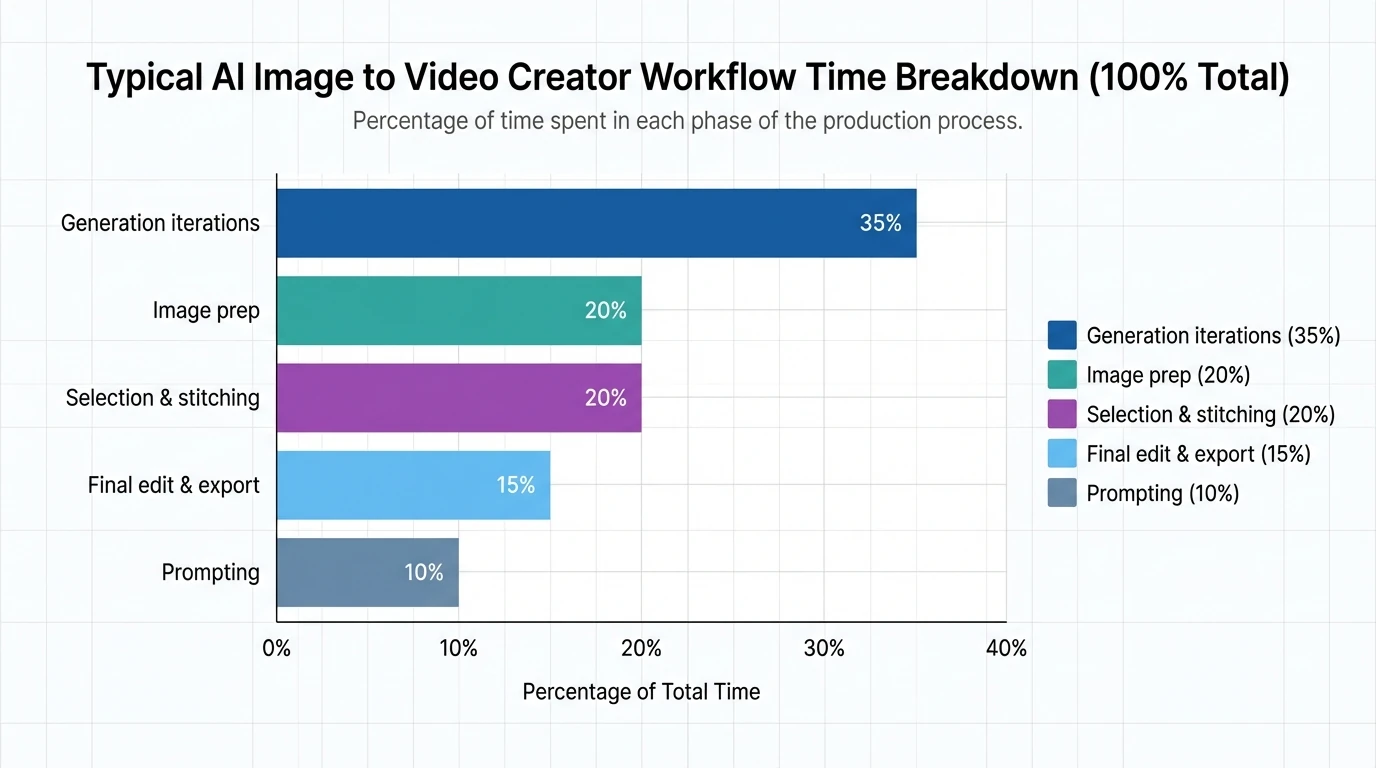
This is where budgets quietly disappear—each revision costs time or credits. I typically generate 4 versions, then select the best moment (often 1.5–3 seconds) and build around it. If you need 15 seconds, you’ll usually get better quality by stitching 2–3 short clips than forcing one long take.
5) Lock Character Consistency (If You Publish Repeatedly)
Character consistency is still the make-or-break issue for ai image to video. Use:
- Reference images set (same outfit/lighting)
- “Reference/character lock” features if your tool has them
- Conservative motion (small head turns beat full-body spins)
If you’re building a recognizable on-screen persona, Freebeat AI’s emphasis on reusable visual identities and image-based character inputs is designed for that exact problem—especially when your content is music-driven.
6) Add Audio the Smart Way: Beat Structure, Not Just “A Song”
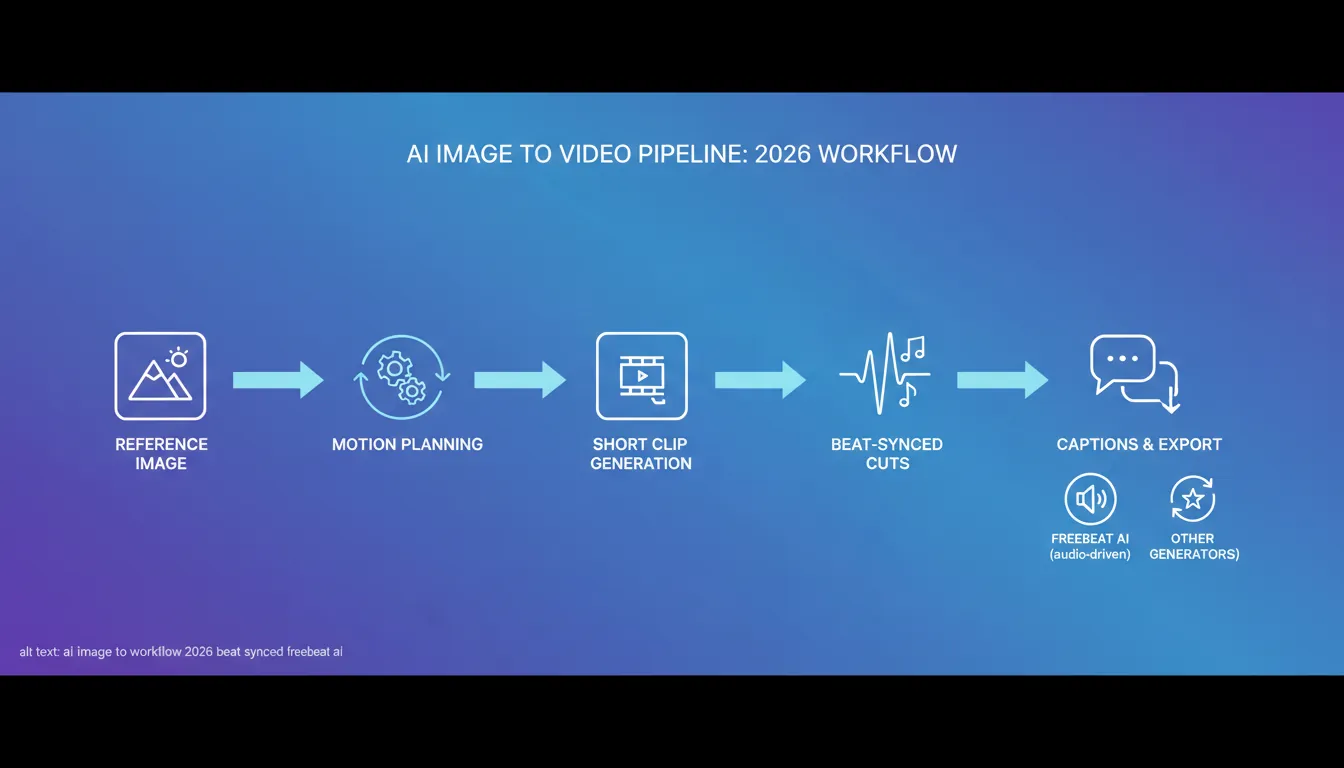
If your video is music-first, the edit should follow song structure: intro → verse → build → drop → outro. That’s the difference between “moving picture” and “music video.”
This is where Freebeat AI is meaningfully different from general generators: it analyzes BPM, beats, bars, drops, and sections, then drives camera motion, transitions, and pacing with that structure. In my tests on short promos, that structure-aware pacing saved the most time compared to manually keyframing cuts in an editor.
The BEST AI Video Generator 2026! Sora vs Veo vs Grok vs Kling!
7) Finish in an Editor (Yes, Still)
Even with great generation, you should still do a quick finishing pass:
- Cut on beats (or syllables)
- Add titles as real overlays (don’t rely on AI-rendered text)
- Mild stabilization or motion smoothing if needed
- Export vertical versions (9:16) for default distribution
What to Expect: Quality, Time, and Cost Reality Check
AI video pricing is often “cheap to try, expensive to iterate.” The practical cost driver is revisions—every tweak can burn credits. Plan your workflow to reduce re-renders: lock the reference image, keep motion modest, and stitch multiple shorts.
Key quality constraints to watch:
- Identity drift: face/outfit subtly changes between frames
- Temporal wobble: edges ripple, jewelry melts, patterns crawl
- Physics mistakes: floating feet, odd cloth behavior in fast moves
- Text issues: signage and labels become garbled—overlay text in post
Choosing the Right Tool (Quick Decision Guide)
Use this checklist to pick your ai image to video tool without overthinking:
- If your #1 goal is music-synced edits and pacing, pick Freebeat AI.
- If you need photoreal humans moving naturally, test Kling first.
- If you want fast, beginner-friendly iterations, start with Luma.
- If you want creative transformations and social remix tools, choose Pika.
- If you need pipeline control and editing features, consider Runway.
- If you want a stable baseline for animating a still, try SVD-based options.
How Freebeat AI Fits an AI Image to Video Workflow (Music-First)
Most “general” generators treat audio as an afterthought. Freebeat AI treats audio as the timeline blueprint. For musicians and creators, that changes the workflow: instead of generating random motion and trying to cut it later, you generate motion that already respects bars, drops, and energy shifts.
Practical ways to use Freebeat AI for ai image to video:
- Turn cover art + your track into a synced teaser with drop-aware transitions.
- Maintain a consistent AI avatar/visual identity across releases and shorts.
- Switch styles (cinematic/anime/abstract) while keeping pacing tied to the same song structure.
If your output is primarily music promos, this specialization usually reduces revisions—the hidden cost in most AI video tools.
FAQ: AI Image to Video (2026)
1) What is the best AI image to video tool in 2026?
It depends on the job. For music-driven content and beat-synced pacing, Freebeat AI is purpose-built. For photoreal human motion, Kling is often a top pick, while Luma and Pika are strong for fast social creation and creative effects.
2) Why does my AI image to video output “wobble” or melt details?
Temporal coherence is still hard. Fine patterns (hair, jewelry, text, stripes) tend to shimmer between frames. Use simpler wardrobe/textures, reduce motion intensity, and prefer short clips you can stitch.
3) How do I keep the same character consistent across multiple videos?
Use a small reference set (multiple angles), avoid extreme motion, and use tools that support reference/identity locking. Reusing the same avatar inputs and visual identity rules is more reliable than re-prompting from scratch each time.
4) Can AI image to video generate longer clips (30–60 seconds)?
Some models can, but quality often degrades over time. Many creators get better results by generating several 5–10 second clips and editing them into a longer sequence.
5) Is AI image to video good for ads?
Yes—especially for hooks and B-roll. A subtle push-in on a product shot or a stylized motion loop can outperform static images, as long as branding text is added in post for clarity.
6) How do I add readable text to AI-generated videos?
Don’t rely on in-scene AI text. Export the clip and add text overlays in an editor so typography stays sharp and compliant with brand guidelines.
7) What aspect ratio should I generate for social platforms in 2026?
Vertical is often the default for reach. If your tool allows, generate 9:16 versions or compose your reference image with safe margins so you can crop without cutting off faces or key details.
Conclusion: Turning One Image Into a Video That Feels Intentional
AI image to video works best when you treat it like directing: start with a strong reference, choose the right motion type, generate short clips, and stitch with purpose. If your content lives and dies by rhythm—music promos, dance visuals, lyric snippets—Freebeat AI’s audio-reactive planning can remove the hardest part: making motion and transitions feel like the song, not like a random effect.
📌 transforming music video creation with innovative ai features


