Contact partnership@freebeat.ai for guest post/link insertion opportunities.
You’ve got a solid clip—good lighting, decent framing, maybe even a clear message. Then you add music to a video, export, and… it feels “off.” The beat doesn’t land, the vocals fight your voiceover, or the whole thing gets muted on Instagram. I’ve been there: the video looked right, but the audio made it feel amateur.
This how-to guide shows you how to add music to a video the right way—by avoiding the seven mistakes that waste the most time. You’ll also get quick fixes, level targets, and a simple workflow whether you’re on desktop, iPhone, Android, or using an AI music-video tool like Freebeat AI.
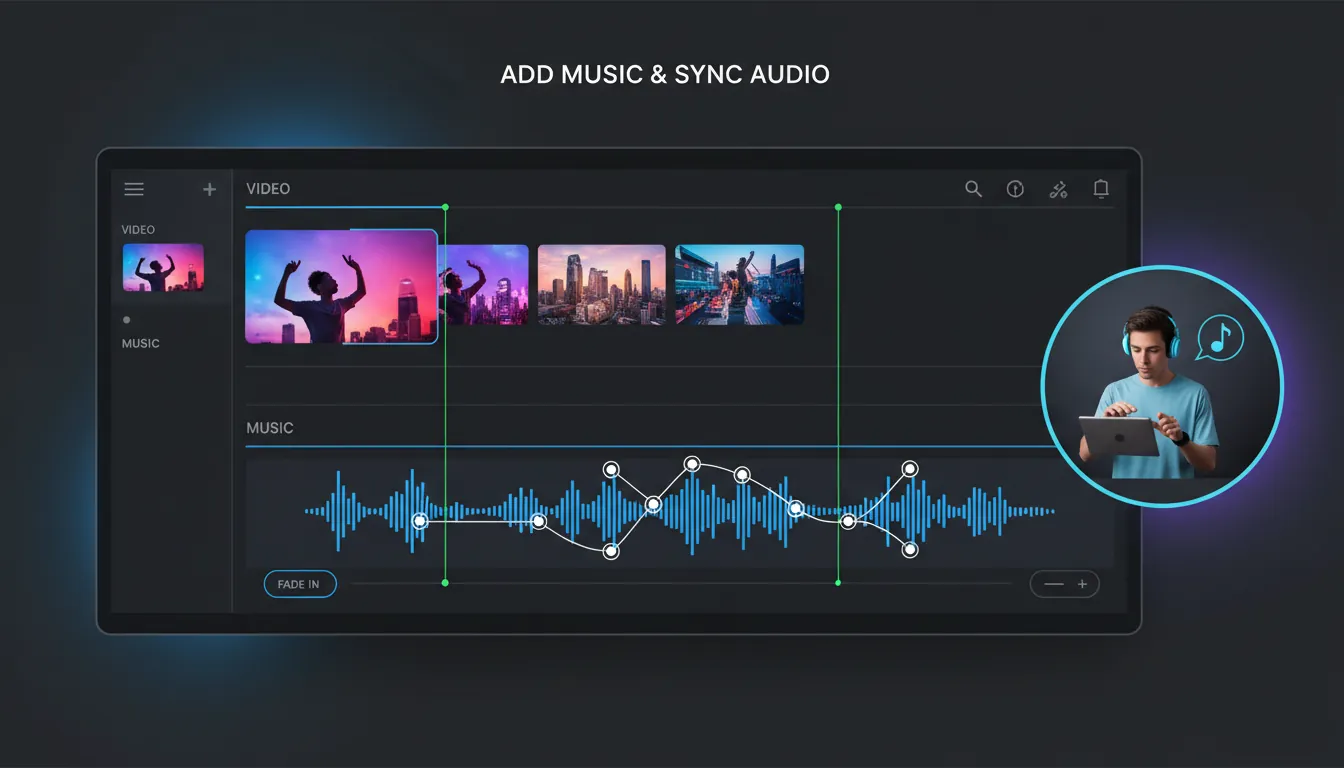
How to add background music to a video (the fast workflow)
When you add music to a video, the goal is simple: music supports the story without stealing clarity from dialogue, vocals, or key moments.
- Choose your music source
- Use licensed tracks (royalty-free, subscription, platform library, or your own).
- Avoid ripping from streaming services (Spotify/Apple Music), which doesn’t grant sync rights.
- Import video + music into your editor
- Desktop: Premiere Pro, Final Cut, DaVinci Resolve, CapCut, etc.
- Mobile: iMovie (iPhone), CapCut, Splice, VN.
- Trim to structure
- Identify intro, verse, chorus/drop, outro.
- Cut or loop cleanly on bars (not randomly mid-phrase).
- Sync changes to music
- Align cuts/transitions to beats, snare hits, or section changes.
- Set levels
- Dialogue-first videos: keep music lower.
- Music-first videos: keep peaks controlled to prevent clipping/distortion.
- Add fades + ducking
- Fade in/out at start and end.
- Duck music under speech or important SFX.
- Export with correct settings
- MP4 (H.264) + AAC audio is the common “safe” standard for social platforms.
The 7 most common mistakes when you add music to a video (and quick fixes)
1) Using music you don’t have rights to (the fastest way to get muted)
This is the mistake that hurts the most because it can “work” locally and still fail after upload. As Universal Production Music explains, using copyrighted music without permission typically requires a sync license—crediting the artist doesn’t make it legal or safe from detection systems like Content ID. See: How to use music in videos legally.
Fix
- Use music you created, properly licensed tracks, or platform-approved libraries.
- If you need a known song, clear both composition and master recording rights (ASCAP breaks down sync and master use licensing here: ASCAP checklist for using music in film).
Practical rule
- If you can’t prove you have permission, don’t publish it commercially.
2) Setting the music too loud (masking dialogue or key sounds)
I hear this constantly in promos and tutorials: the music feels “exciting,” but viewers strain to understand speech. Epidemic Sound’s mixing guidance suggests dialogue often sits around -18 dB to -9 dB, while music typically needs to be lower—especially under voice, where it may land roughly -30 dB to -35 dB depending on the material (audio mixing for video).
Fix
- Start with dialogue intelligibility, then bring music up until it almost distracts—then back off 2 dB.
- Add sidechain ducking (auto-lowers music when someone speaks) if your editor supports it.
3) Bad timing: edits that don’t hit the beat (instant “cheap” feel)
Even if your visuals are great, unsynced cuts feel sloppy. This is a classic immersion-breaker in sound design: when audio cues don’t align with visual events, it reads as wrong immediately.
Fix
- Zoom into the waveform and align cut points to clear transients (kick/snare/clap).
- If your clip timing is fixed, time-stretch the music slightly (small changes) or pick a different section.
Freebeat AI angle
- Freebeat’s audio-reactive approach is designed for this: it reads BPM, bars, and song sections so transitions and camera motion follow the track structure instead of random template loops.
4) Ignoring fades, intros, and endings (harsh starts and awkward cutoffs)
Hard-start music can feel like a jump scare. Hard-stop endings feel unfinished—especially on Reels/Shorts where loops matter.
Fix
- Add a 0.2–1.0s fade-in and 0.5–2.0s fade-out depending on style.
- If you need a clean loop, cut on a bar line and crossfade at the loop point.
5) Forgetting ambient sound and silence (your video feels “hollow”)
When you replace all original audio with music, scenes lose realism. Many editors over-focus on “music + voice” and ignore the subtle role of room tone, ambience, and intentional silence—making visuals feel disconnected.
Fix
- Keep a thin bed of ambient audio under music (even -30 dB-ish can help).
- Use silence strategically before a drop or reveal to create contrast.
6) Cluttering the timeline (then accidentally breaking your mix)
A messy timeline leads to mistakes: stray duplicate audio clips, overlapping tracks, and inconsistent levels—especially in short social edits where you iterate fast.
Fix
- Label tracks: VO / MUSIC / SFX / AMB.
- Color-code sections and lock finished tracks to avoid accidental shifts.
- Keep one “master music” track unless you need stems.
7) Exporting with the wrong audio settings (sync issues, distortion, or platform re-encoding)
Some “weird audio” problems come from mismatched sample rates, channel configs, or aggressive compression during export. For social media, you usually want a standard, widely supported combo.
Fix
- Export MP4 (H.264) video with AAC audio.
- Use standard sample rates like 48 kHz (common for video).
- Check your export for clipping (no red peaks). Leave headroom.
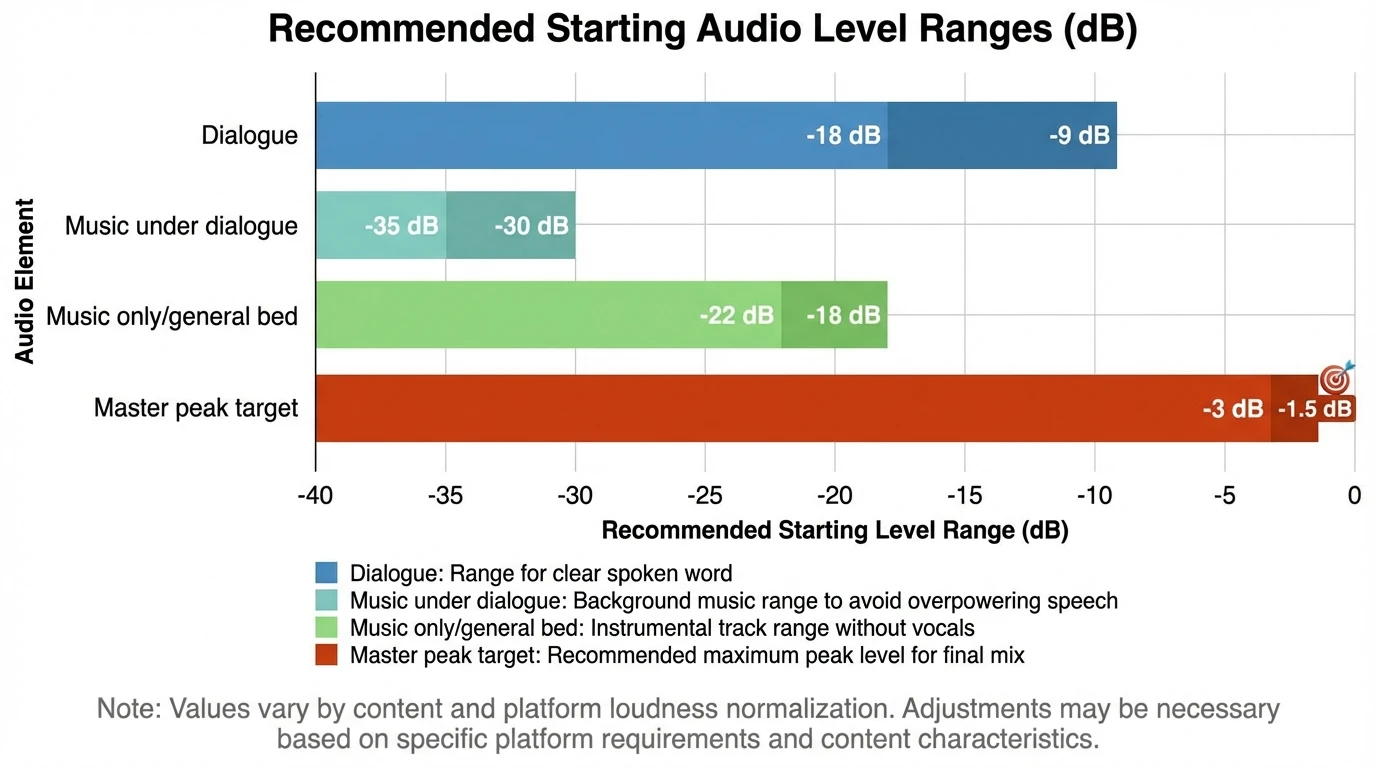
Quick reference: safe starting points when you add music to a video
Use these as starting settings, then adjust by ear on multiple devices (phone speaker, earbuds, laptop).
Scenario
Dialogue Target
Music Target
Notes
Talking-head / tutorial
~ -18 to -9 dB
~ -35 to -30 dB (under VO)
Prioritize intelligibility; duck music when speaking
Montage / B-roll (no VO)
N/A
~ -22 to -18 dB
Keep peaks controlled; avoid clipping
Music video (track is hero)
Optional
Often louder, but avoid clipping
Leave headroom; check distortion on small speakers
Social ads with VO + SFX
~ -18 to -9 dB
Start low, raise carefully
SFX transients can spike fast—watch meters
How to add music to a video on iPhone (simple method)
If your goal is “add background music and post,” iPhone workflows should be minimal.
- Open iMovie (or CapCut/Splice).
- Import your video clip(s).
- Add audio/music and trim to fit.
- Lower music volume and add fades.
- Export at 1080p (or platform preset) and test playback.
Tip from practice: iPhone speakers exaggerate mids and can make music feel louder than it is—always test with earbuds too.
How to add music to a video for free (without getting burned)
Yes, you can add music to a video for free—but “free” must still be licensed.
- Use platform libraries (YouTube Audio Library, Instagram in-app music where allowed).
- Use truly royalty-free tracks with clear terms.
- Use your own music.
Instagram also shares practical guidelines that affect reach and muting—for example, shorter clips of recorded music are safer, and video should have a real visual component (Instagram guidelines for including music in video).
Where Freebeat AI fits when you want music-driven timing (not just background audio)
If you’re not just adding “background music,” but trying to make the video move like the song, traditional editors can get slow: you’re manually marking beats, cutting on bars, and reworking pacing.
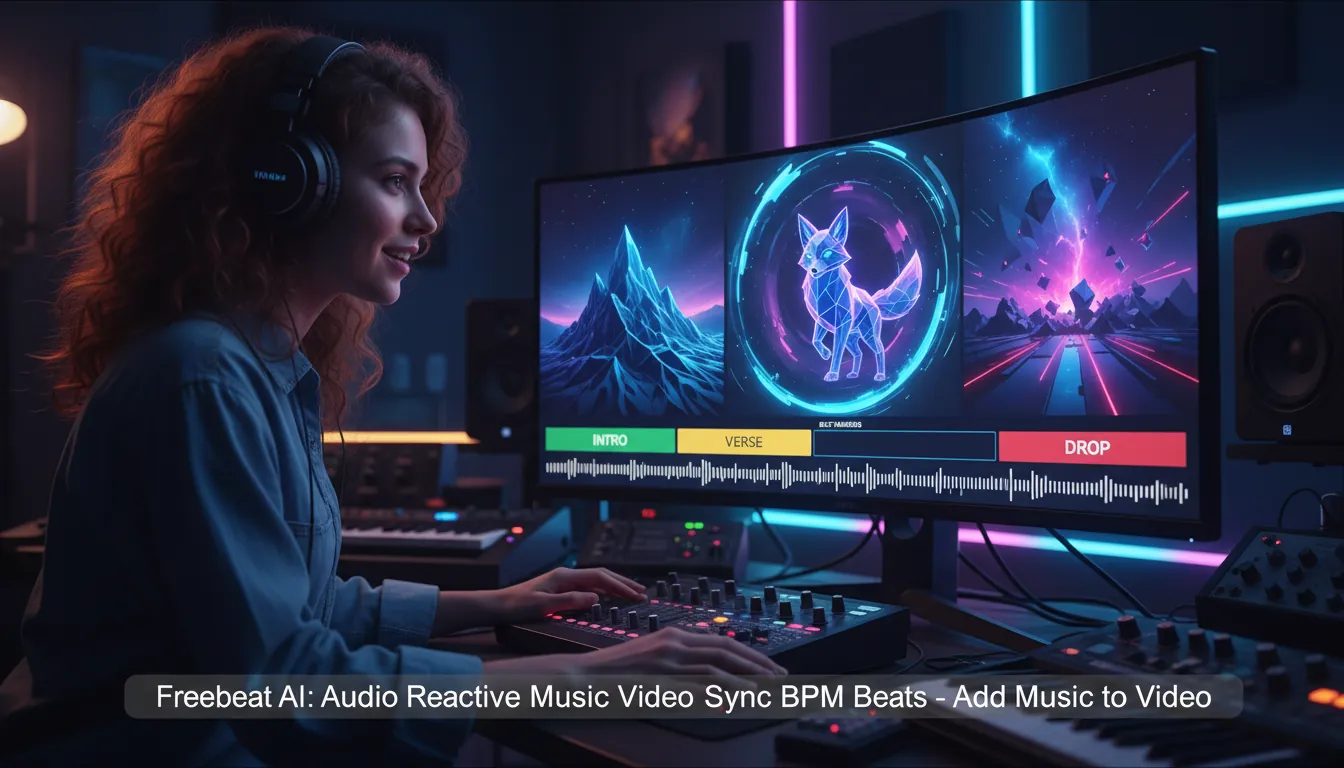
Freebeat AI is built for audio-reactive video generation—it reads BPM, beats, bars, drops, and song sections, then uses that structure to drive:
- Camera motion and transitions
- Scene pacing and energy shifts
- Director-style shot planning (performance shots + cinematic B-roll)
- Lyric video timing (karaoke-style) and dance-focused modes
- Consistent characters via reusable AI avatars
In my testing mindset, the biggest advantage is not “automation for its own sake,” but repeatable beat accuracy when you need scale (multiple songs, multiple formats, fast turnaround).
Instantly lower music volume over voice with Music Ducking in Premiere Pro
Final checklist before you publish
When you add music to a video, run this quick pass:
- Rights: Do you have permission/licenses for the track?
- Sync: Do edits land on beats/sections where it matters?
- Levels: Can you understand speech with eyes closed?
- Mono test: Collapse to mono to reveal masking/cancellation issues (a fast pro check).
- Export: MP4 (H.264) + AAC, no clipping, tested on phone + earbuds.
Conclusion: make the music feel intentional, not pasted on
A good soundtrack doesn’t just “sit under” video—it guides emotion, pacing, and attention. The next time you add music to a video, avoid the seven mistakes above and you’ll get cleaner dialogue, tighter timing, fewer copyright headaches, and a more professional finish.
If you’re building music-first content and want the visuals to follow the song structure automatically, Freebeat AI can remove a lot of manual beat-marking and pacing work.
📌 best ways to enhance music videos with sound visualization
FAQ: Add music to a video
1) How do I add background music to a video?
Import your video and music into an editor, place the music on an audio track under the video, trim it to fit, add fades, and lower volume so it supports (not masks) dialogue.
2) Can I add music to my video for free?
Yes—use platform music libraries, public domain tracks, or properly licensed royalty-free music with clear terms. “Free” doesn’t automatically mean “legal.”
3) Can I add music to a video on my iPhone?
Yes. iMovie and apps like CapCut or Splice let you import a clip, add music, adjust volume, add fades, and export in minutes.
4) Which app is good to add music to video?
For fast social edits: CapCut/Splice. For pro control: Premiere Pro/Final Cut/DaVinci Resolve. For music-structure-driven visuals: Freebeat AI (audio-reactive).
5) What volume should background music be under voice?
A common starting point is dialogue around -18 to -9 dB, with music under voice often around -35 to -30 dB—then adjust to taste and clarity.
6) Why does my video get muted on Instagram or YouTube?
Most often: copyrighted music without the right license. Platforms detect tracks automatically and may mute, restrict, or claim monetization. Use licensed or platform-approved music.
7) What export settings are best when adding music to a video?
For broad compatibility: MP4 (H.264) video with AAC audio, standard sample rate (often 48 kHz), and avoid clipping by leaving headroom.


